Release 8.1.5
A67440-01
 Library |
 Product |
 Contents |
 Index |
| Net8 Administrator's Guide Release 8.1.5 A67440-01 |
|


This chapter describes optional features you can enable.
Specific topics discussed are:
This sections describes the following:
These changes are saved to the TNSNAMES.ORA file at $ORACLE_HOME/network/admin on UNIX or ORACLE_HOME\network\admin on Windows platforms.
To modify attributes of a net service name, such as its name, service name, SID, or protocol address:
To change the name of a net service name:
Each connect descriptor can contain one or more listener addresses:
net_service_name= (description=(address= (protocol_address_information))(address= (protocol_address_information))(address= (protocol_address_information))(connect_data= (service_name=service_name) ) )
To add an additional protocol address to a net service name:
A new address tab appears:
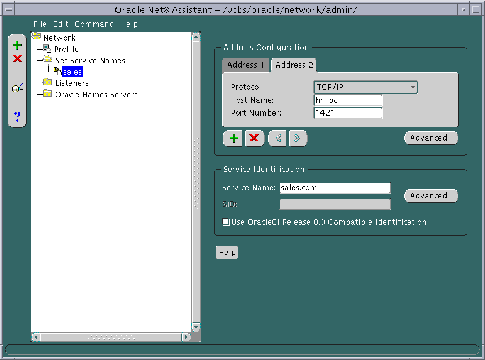
The TNSNAMES.ORA file is re-created.
The Net8 Assistant application exits.
To delete a protocol address from a net service name in the TNSNAMES.ORA file:
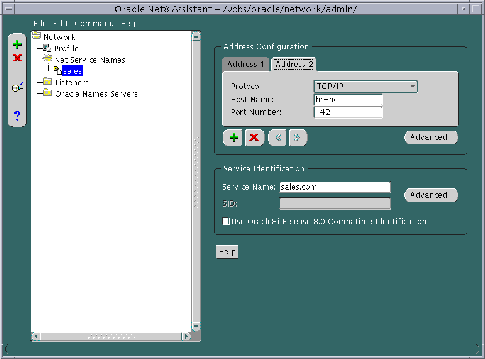
The TNSNAMES.ORA file is re-created.
The Net8 Assistant application exits.
To delete a net service name from the TNSNAMES.ORA file:
If you click Finish, the net service name is deleted, and the TNSNAMES.ORA file is re-created.
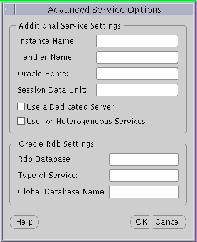
A TNSNAMES.ORA's CONNECT_DATA section of a connect descriptor may optionally contain the following features:
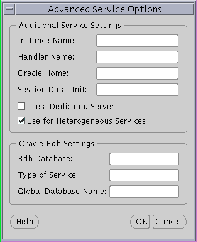
| Net8 Assistant option | TNSNAMES.ORA Parameter | Description |
|---|---|---|
|
Instance Name |
INSTANCE_NAME |
Identifies the database instance to access. The instance name can be obtained from the INSTANCE_NAME parameter in the INITSID.ORA file. Note: Not enabled if Use Oracle8i Release 8.0 Compatible Identification is turned ON. Additional Information: See "Setting Service Names and Instance Names". |
|
Handler Name |
HANDLER_NAME |
Identifies a service handler, such as an MTS dispatcher, to access. Note: Not enabled if Use Oracle8i Release 8.0 Compatible Identification is turned ON. Note: Not enabled for release 8.1.5. |
|
Session Data Unit (SDU) Size |
SDU |
If you want to optimize the transfer rate of data packets being sent across the network, you can specify the session data unit (SDU) size to change the performance characteristics having to do with the packets sent across the network. Additional Information: See "Optimizing Data Transfer by Adjusting the Session Data Unit (SDU) Size". |
|
Use a Dedicated Server |
SERVER |
If you wish for the client connection to bypass multi-threaded server and to use dedicated server, turn this option on. |
|
Use for Heterogeneous Services |
HS |
If you wish for an Oracle8i server to access a non-Oracle system, turn this option on. Note: Not enabled if Use Oracle8i Release 8.0 Compatible Identification is turned ON. Additional Information: See "Configuring Net8 for Oracle Heterogeneous Services". |
|
Oracle Rdb Settings |
|
|
|
RDB_DATABASE |
Specifies the file name of an Oracle RDB database. Additional Information: See "Configuring Net8 for an Oracle Rdb Database". |
|
|
TYPE_OF_SERVICE |
Specifies the type of service to use for an Oracle RDB database. Additional Information: See "Configuring Net8 for an Oracle Rdb Database". |
|
|
Global Database Name |
GLOBAL_NAME |
Identifies the Oracle Rdb database. Additional Information: See "Configuring Net8 for an Oracle Rdb Database". |
To configure these advanced options:
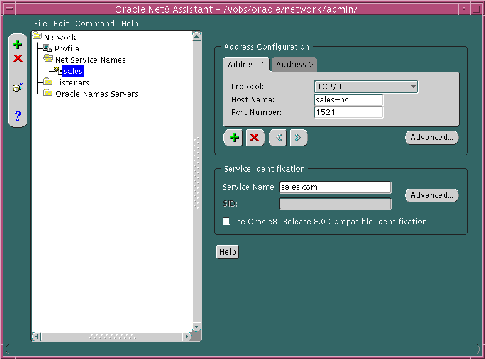
The Advanced Service Options dialog box appears:
The TNSNAMES.ORA file is re-created.
The Net8 Assistant application exits.
When multiple addresses have been configured for a net service name, the following features may be configured:
You can achieve the following effects from client load balancing and connect-time failover:
|
CAUTION: Implementing connect-time failover does not allow use of static service configuration parameters in the LISTENER.ORA file. However, static configuration is required for Oracle8i release 8.0 or Oracle7 databases and Oracle Enterprise Manager. For further information about statically configuring the listener, see "Configuring a Listener with Service Information". See the Oracle8i Parallel Server Setup and Configuration Guide for instructions on setting up connect-time failover for Oracle Parallel Server in an Oracle Enterprise Manager environment. |
To enable of disable client load balancing or connect-time failover, use the Net8 Assistant.
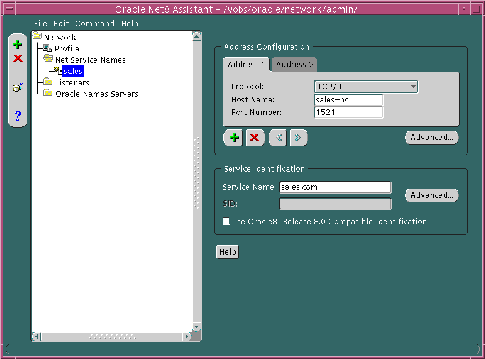
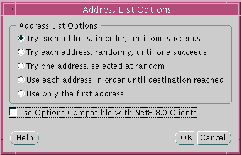
The Address List Options dialog box appears:
The TNSNAMES.ORA file is re-created.
The Net8 Assistant application exits.
In the example below, a TNSNAMES.ORA is configured for client load balancing with the Try each address, randomly, until one succeeds option:
sales=
 (description=
  (load_balance=on)
  (address=(protocol=tcp)(host=sales-pc)(port=1521)
  )
  (address=(protocol=tcp)(host=hr-pc)(port=1521)
  )
  (connect_data=
    (service_name=sales.com))
 )
In the example below, a TNSNAMES.ORA is configured for connect-time failover with the Try each address, in order, until one succeeds option:
sales=
 (description=
  (address_list=
   (load_balance=off)
   (failover=on)
   (address=(protocol=tcp)(host=hr-pc)(port=1521)
   (address=(protocol=tcp)(host=finance-pc)(port=1521)
   )
  )
  (connect_data=(service_name=sales.com))
 )
A profile on the client configures functionality and defines how Net8 works to establish and maintain connections with services on the network. A profile is stored and implemented through a configuration file called SQLNET.ORA, located in $ORACLE_HOME/network/admin on UNIX and ORACLE_HOME\network\admin on Windows platforms. A profile allows configuration of:
This section describes the following profile features:
For a complete list of all available parameters that may be configured in a profile, see "Profile Parameters (SQLNET.ORA)".
The NAMES.DEFAULT_DOMAIN parameter in SQLNET.ORA defines the domain from which the client most often requests names. When this parameter is set, the domain name is automatically appended to the net service name in a connect string. If this parameter is set with the Net8 Assistant, the domain is appended to any new net service name created without a domain. For example, if NAMES.DEFAULT_DOMAIN=COM is set, the connect string SCOTT/TIGER@ SALES gets searched in the TNSNAMES.ORA as SALES.COM. If the connect string includes the domain extension, (such as SCOTT/TIGER@SALES.COM), the domain is not appended.
To specify a domain, use the Net8 Assistant.
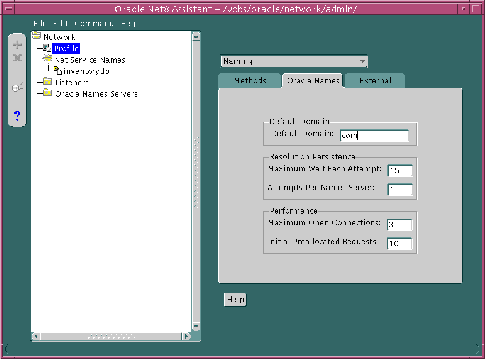
The SQLNET.ORA should contain an entry that looks like the following:
names.default_domain=com
After naming methods are configured, as documented in Chapter 6, "Configuring Naming Methods and the Listener", they must be prioritized. The naming method at the top of the list is used first to resolve a net service name. If it cannot resolve the net service name, the second method in the list is used to resolve the net service name.
To specify the order of naming methods, use the Net8 Assistant.
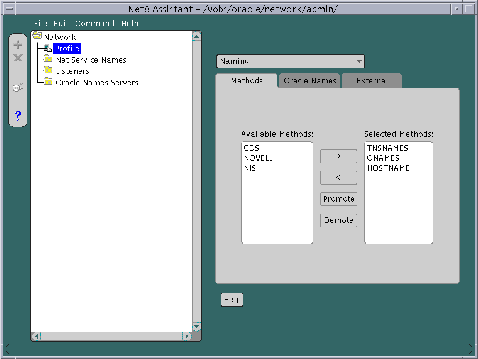
The SQLNET.ORA should contain an entry that looks like the following:
names.directory_path=(onames, tnsnames)
Available naming methods are described below:
| Naming Method | Description |
|---|---|
|
ONAMES |
Net service names are resolved centrally, through an Oracle Names server. |
|
TNSNAMES |
Net service names are resolved using the TNSNAMES.ORA file which resides on the client. |
|
HOSTNAME |
Net service names are resolved using the host naming method. Certain criteria must be met to use host naming names resolution. |
|
CDS |
This naming method is available with Oracle Advanced Security option. Additional Information: See Oracle Advanced Security Administrator's Guide. |
|
NDS |
NetWare Directory Service (NDS) |
|
NIS |
Network Information Service (NIS) |
A preferred Oracle Names Server is an Oracle Names Server that is preferred by a client for names resolution. It is normally the Oracle Names server that is physically closest to the client, or available over the least expensive network link. Most importantly, a preferred Oracle Names server should be able to resolve the net service names of the services you use most frequently.
If you are using Oracle Names as a naming service (though not necessarily running an Oracle Names Server on your local machine), you can specify the name and addresses of preferred Oracle Names servers to take precedence over any other available Oracle Names server address. Net8 will route connect requests to each preferred Names Server until a response is received.
|
Note: Preferred Oracle Names servers are an alternative to using the Discover Oracle Names Servers option in the Net8 Assistant or the REORDER_NS command in the NAMESCTL control utility, a newer feature that creates a list of Oracle Names servers based on what is available throughout the network, and ranks them in the order of fastest response time. Preferred Oracle Names servers override any other Oracle Names servers found in the discovery process. Once you have initially discovered a Names Server and generated a Names Server list file, you may want to delete preferred Oracle Names Servers. See "Differences Between Versions of Oracle Names" for a description of how Oracle Names server lists are created. |
The NAMES.PREFERRED_SERVERS parameter in SQLNET.ORA specifies the preferred Oracle Names server(s). If you configure preferred Oracle Names server(s), the Oracle Names listening protocol address(es) you configured in NAMES.ORA must match the address(es) you configure with the NAMES.PREFERRED_SERVERS in SQLNET.ORA.
To specify a preferred Oracle Names server:
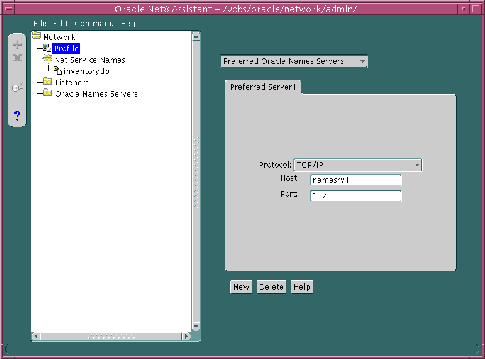
The SQLNET.ORA should contain an entry that looks like the following:
names.preferred_servers=
  (address= (protocol=tcp) (host=namesrv1)(port=1575)
The profile configuration file SQLNET.ORA can be configured with the following advanced features:
To set advanced features for clients, use either or the Net8 Assistant:
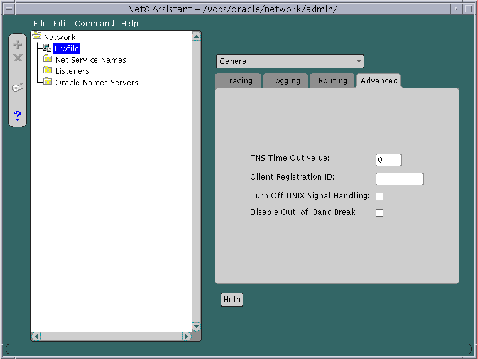
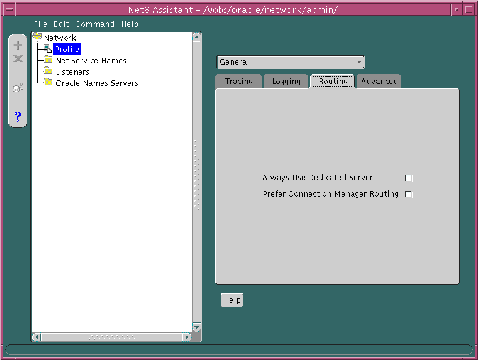
The client and servers acting as clients can be configured so connection requests are directed to a specific process at all times. The following options in the Net8 Assistant or parameters in SQLNET.ORA file may be specified:
To route connection requests, use the Net8 Assistant:
Oracle Advanced Security is an optional product that works with Net8 and SQL*Net release 2.1.4 and later. It includes the following features:
Oracle Advanced Security enables Net8 and related products to use network data encryption and checksumming so that data cannot be read or altered. It protects data from unauthorized viewing by using the RSA Data Security RC4 or the Data Encryption Standard (DES) encryption algorithm. To ensure that data has not been modified, deleted, or replayed during transmission, the security services of Oracle Advanced Security can generate a cryptographically secure message digest and include it with each packet sent across the network.
Oracle Advanced Security is supported by Oracle Connection Manager. Clients and servers using different protocols can securely transfer data across network protocol boundaries. For example, clients using LAN protocols such as NetWare (SPX) can share data securely with large servers using different protocols such as LU6.2, TCP/IP, or DECnet.
Oracle Advanced Security includes enhanced user authentication services such as support for single sign-on. These authentication services enhance the existing security facilities of Oracle7 and Oracle8i such as secure network access control log on, roles, and auditing by providing reliable user identification. No changes to applications are required. Oracle Advanced Security works over all protocols, operating systems, and name services. It also supports token authentication through Security Dynamics ACE Server, Kerberos, RADIUS protocol or RADIUS compatible server, Secure Sockets Layer (SSL), DCE Security Server, and biometrics authentication through Identix.
These services are available to most products that implement Net8, including the Oracle8i, Developer 2000 tools, and any other Oracle or third-party products that support Net8.
Oracle Distributed Computing Environment (DCE) Integration is an optional product that works with Net8 and SQL*Net 2.1.6 and later. It enables users to transparently use Oracle tools and applications to access Oracle7 and Oracle8i servers in a DCE environment. It provides authenticated RPC (Remote Procedure Call) as the transport mechanism, which enables multi-vendor interoperability. The DCE security service enables a user logged onto DCE to securely access any Oracle application without having to specify a user name or password. This is sometimes referred to as "external authentication", formerly referred to as "OPS$ support".
Oracle DCE Integration also provides support for DCE Cell Directory Service (CDS), which allows Oracle7 and Oracle8i services to be transparently accessed throughout the DCE environment. Users can connect to Oracle database servers in a DCE environment using familiar Oracle service names. Oracle service names can be managed from a central location with standard DCE tools. For more information, see Oracle Advanced Security Administrator's Guide and your Oracle platform-specific documentation.
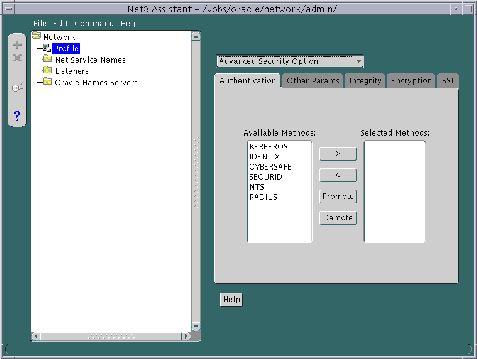
To configure a client to use Advanced Security option:
See Oracle Advanced Security Administrator's Guide for further information about configuration.
Oracle Connection Manager enables you to take advantage of Net8's ability to multiplex or funnel multiple logical client network sessions through a single transport connection to a multi-threaded server destination. This is accomplished through Oracle Connection Manager's connection concentration feature.
The gateway process, CMGW, accepts connection requests at the following default listening address:"Oracle Connection Manager Processes"
cman=(address=(protocol=tcp)(host=anyhost)(port=1630))
The administrative process, CMADMIN, listens for local and remote administration commands at the following listening address:
cman_admin=(address=(protocol=tcp)(host=anyhost)(port=1830))
If you do not want to use TCP/IP or the ports 1630 and 1830, you must create a CMAN.ORA with the following information, if one does not exist with the address information, at $ORACLE_HOME/network/admin on UNIX and ORACLE_HOME\network\admin on Windows NT:
cman=(address=(protocol_address_information))
cman_admin=(address=(protocol_address_information))
The Net8 Assistant does not support configuration of CMAN.ORA, so changes must be made manually.
See also the following:
Verify that the destination server is configured as a multi-threaded server and that the multiplexing feature is turned on. This is done by setting the MTS_DISPATCHERS parameter in the database initialization file (INITSID.ORA) for that instance with the PROTOCOL and MULIPLEX attribute.
For example:
mts_dispatchers="(protocol=tcp) (multiplex=on)"
For more information about configuring MTS, see Chapter 9, "Configuring Multi-Threaded Server".
Client support is accomplished by setting the Oracle Connection Manager address and listener address through a TNSNAMES.ORA file or an Oracle Names server:
Figure 7-1 shows a comparison of a regular TNSNAMES.ORA file and a TNSNAMES.ORA file with an entry to use the Oracle Connection Manager (Connection Manager entries are shown in boldface text):
Oracle Connection Manager also provides multiple protocol support enabling a client and server with different networking protocols to communicate with each other. An Oracle Connection Manager can listen on any protocol that Oracle supports.
Without multi-protocol support, a client that uses SPX cannot connect to a server that uses TCP/IP. If Oracle Connection Manager is configured for TCP/IP, the client can connect to Oracle Connection Manager using SPX, and Oracle Connection Manager can connect to the server using TCP/IP.
The gateway process, CMGW, accepts connection requests at the following default listening address:
cman=(address=(protocol=tcp)(host=anyhost)(port=1630))
The administrative process, CMADMIN, listens for local and remote administration commands at the following listening address:
cman_admin=(address=(protocol=tcp)(host=anyhost)(port=1830))
If you do not want to use TCP/IP or the ports 1630 and 1830, you must create a CMAN.ORA with the following information, if one does not exist with the address information, at $ORACLE_HOME/network/admin on UNIX and ORACLE_HOME\network\admin on Windows NT:
cman=(address=(protocol_address_information))
cman_admin=(address=(protocol_address_information))
The Net8 Assistant does not support configuration of CMAN.ORA, so changes must be made manually.
See also the following:
Multi-protocol support is accomplished by setting the Oracle Connection Manager address and listener address through a TNSNAMES.ORA file or Oracle Names servers:
Figure 7-2 depicts a client using SPX to connect to an Oracle Connection Manager, and Oracle Connection Manager using TCP/IP to connect to a database server.
cman=
   (description=
      (source_route=yes)
      (address=
            (protocol=spx)
            (service=cman)
      )
      (address=
            (protocol=tcp)
            (host=sales-pc)
            (port=1521)
      )
      (connect_data=
            (service_name=sales.com)
      )
   )
Oracle Connection Manager also includes a feature which you can use to control client access to designated servers in a TCP/IP environment. By specifying certain filtering rules, you may allow or restrict specific clients access to a server.
This feature requires the release 8.1 Oracle Connection Manager if there are release 8.1 services in the network.
To configure the Oracle Connection Manager:
$ORACLE_HOME/network/admin on UNIX and ORACLE_HOME\network\admin on Windows NT. The Net8 Assistant does not support configuration of CMAN.ORA.
cman=(address=(protocol=tcp)(host=anyhost)(port=port))
See "CMGW" for further information about CMGW.
cman=(address=(protocol=tcp)(host=anyhost)(port=port))
See "CMADMIN" for further information about CMGW.
cman_rules=
   (rule_list=
        (rule=
            (src=shost)
            (dst=dhost)
            (srv=service)
            (act=accept | reject)
        )
     )
Multiple RULEs can be defined within the RULE_LIST. The action (ACT) in the first matched RULE is applied to the request. When CMAN_RULES exists, the Oracle Connection Manager adheres to the principle that which is not expressly permitted is prohibited. If the CMAN_RULES are not defined, then everything is permitted.
The example below shows restriction to service SALES.COM for a client machine of CLIENT1-PC, and access to service DB1 for client 144.25.23.45.
cman_rules=
     (rule_list=
      (rule=(src=client1-pc)(dst=sales-pc)(srv=sales.com)(act=reject))
      (rule=(src=144.25.23.45)(dst=144.25.187.200)(srv=db1)(act=accept))
     )
Client support is accomplished by setting the Oracle Connection Manager address and listener address through a TNSNAMES.ORA file or an Oracle Names server:
Configuring the client involves routing client connection requests you want concentrated to the database server through that a Connection Manager. This is achieved by setting the Oracle Connection Manager address through a TNSNAMES.ORA file or an Oracle Names server:
Step 1: Configure an Oracle Connection Manager Address
To configure an Oracle Connection Manager address in TNSNAMES.ORA:
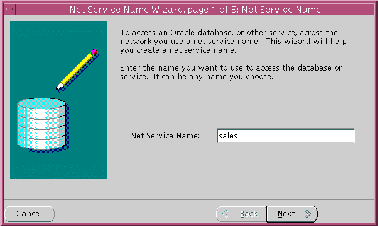
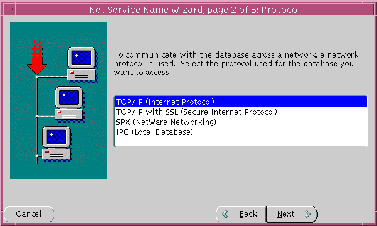
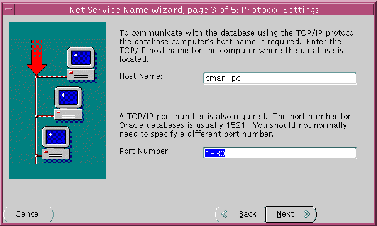
For further information about protocol parameters, see "Configuring Protocol Addresses".
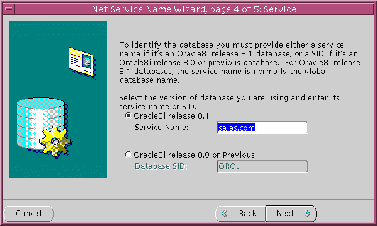
The service name is typically the global database name. See "Setting Service Names and Instance Names" for further information about the service name string to use.
If destination service is prior to release 8.1, click Oracle8 Version 8.0 or Previous, enter a SID in the Database SID field, then click Next.
The new net service name and the Oracle Connection Manager address is added to the Net Service Names folder and the TNSNAMES.ORA.
After the Oracle Connection Manager address is specified, create an address for the listener, so the Oracle Connection Manager can connect to the server.
To configure the listener address in TNSNAMES.ORA:
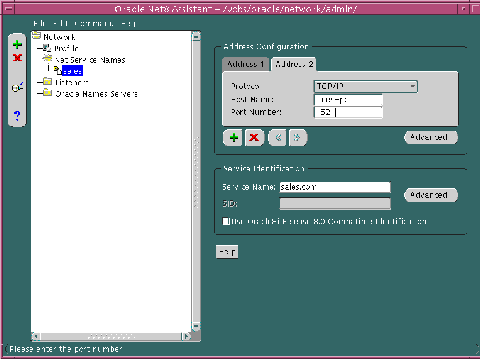
Notice the Oracle Connection Manager address is displayed in the Address 1 tab:
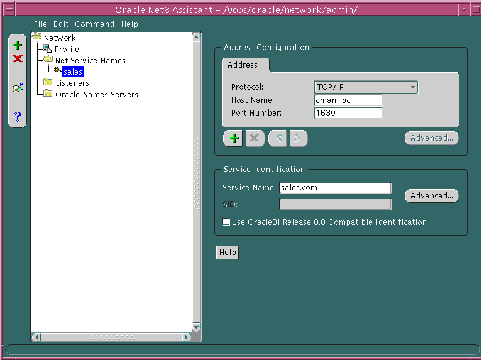
A new address tab displays.
For further information about protocol parameters, see "Configuring Protocol Addresses".
The Address List Options dialog box appears:
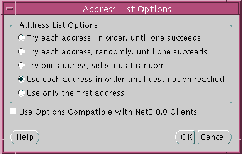
This option creates tells the client to connect to the first address, the Oracle Connection Manager, and from the first address to the second address, the listener.
The listener address is added to the TNSNAMES.ORA file.
Connection pooling is a resource utilization feature that allows you to maximize the number of physical network connections to a multi-threaded server. This is achieved by sharing or pooling a dispatcher's set of connections among multiple client processes.
Verify that the destination server is configured as a multi-threaded server and that the connection pooling parameters are set. This is accomplished by setting the MTS_DISPATCHERS parameter in the database initialization file (INITSID.ORA) with the PROTOCOL, DISPATCHERS, POOL, and CONNECTIONS attributes.
For example:
mts_dispatchers="(protocol=tcp) (dispatchers=2) (pool=yes) (connections=2)"
For more information about configuring MTS, see Chapter 9, "Configuring Multi-Threaded Server".
The Java option in Oracle8i can be programmed in three different ways:
EJBs and CORBA clients are invoked via the CORBA Internet Inter-Orb Protocol (IIOP) protocol.
Java Stored Procedures can run either in dedicated server mode or multi-threaded server (MTS) mode. EJBs and CORBA Servers run only in the MTS configuration. If you are primarily developing Java Stored Procedures, you may run them in the dedicated server configuration. If you are combining both EJBs and CORBA Servers along with Java stored procedures in a single application, you may configure your database to support EJBs and CORBA Servers in an MTS configuration and support stored procedures in dedicated server configuration.
If your network requires configuration of Java Stored Procedures in dedicated server mode and EJBs or CORBA Servers in MTS mode, see "Configuring Both Multi-Threaded Server and Dedicated Server Modes".
This section covers the following topics:
To configure the database to run Java Stored Procedures only, you must decide whether you want the database to run in dedicated server mode or MTS mode. If you are only planning to use Java stored procedures in dedicated server mode, you need to configure the database and clients, as described in the Oracle8i Java Stored Procedures Developer's Guide.
If you want to run Java Stored Procedures in MTS mode, you need to go through the steps associated with configuring the server for MTS mode with the MTS_DISPATCHERS parameter, as described in Chapter 9, "Configuring Multi-Threaded Server".
In configuring Oracle8i for Enterprise JavaBeans and CORBA Servers, you need to be aware of the following issues:
Clients access EJBs and CORBA Servers in the database via the Inter-Orb Protocol (IIOP) protocol. To support IIOP, the database must be configured in MTS mode with the General Inter-Orb Protocol (GIOP) presentation protocol. (IIOP is an implementation of GIOP over TCP/IP). Oracle8i provides a GIOP service implementation. The Oracle8i Java VM is a session-oriented Java VM. This means that each session in the database effectively gets its own VM as a private server. The Java VM, ORB, and database presentation layers are modeled to allow CORBA communication from multiple clients to EJBs and CORBA Servers running in the same or different sessions. For more information, see the Oracle8i Enterprise JavaBeans and CORBA Developer's Guide.
To support Oracle8i's session-oriented behavior, the GIOP facilities in the database have been structured to support two presentation protocols. Depending on which presentation you want to use, you need to choose the appropriate presentation handler:
To support IIOP, the appropriate presentation must be specified in the PRESENTATION attribute of the MTS_DISPATCHERS parameter. To handle session-based IIOP (which is the default behavior), oracle.aurora.server.SGiopServer is registered as the presentation handler in the PRESENTATION attribute of the MTS_DISPATCHERS parameter.
For more information about presentations and session IIOP, see the Oracle8i Enterprise JavaBeans and CORBA Developer's Guide.
Finally, EJB and CORBA clients that communicate with the database via IIOP can communicate with the database either by accessing a dispatcher directly or accessing it via a listener. There are benefits and trade-offs to both approaches.
For scalability, clients may connect to the Java option through the listener. The listener is configured to listen on a well-known port number, and the client communicates with the listener using this port number. To support CORBA and EJB, the listener must be configured to not just listen on a port for the TTC protocol but to also handle GIOP/and session-based GIOP connections. The listener load balances client requests among the dispatchers. While this configuration is more complex, it can also scale easily to support more than 1,000 concurrent connections.
The dispatcher is configured with the a well-known port number. The client uses this port number to connect directly to the dispatcher. This configuration has an easy setup, but scalability may become an issue if you need to support more than 1,000 concurrent connections.
Oracle Corporations recommends access through a listener.
Oracle8i also supports the use of authentication data such as certificates and private keys required for use by SSL in combination with both types of GIOP protocols-- regular GIOP and session-based GIOP. To use SSL with GIOP, you need to carry out two steps:
During a Typical or Minimal installation of the server, or if you choose the Java VM Option using the Oracle Database Configuration Assistant, MTS will be configured automatically for session-based IIOP connections through the listener using TCP/IP.
The INITSID.ORA file is configured in the following manner:
mts_dispatchers="(protocol=tcp)(presentation=oracle.aurora.server.SGiopServer)"
The default attributes are described in the table below:
| Parameter | Description |
|---|---|
|
PROTOCOL (PRO or PROT) |
Specifies the TCP/IP protocol, which the dispatcher will generate a listening end point. |
|
PRESENTATION (PRE or PRES) |
Enables support of GIOP. Valid values for GIOP presentation values include:
See the Oracle8i Enterprise JavaBeans and CORBA Developer's Guide for further information. |
The LISTENER.ORA file is configured in the following manner:
listener=
  (description_list=
   (description=
      (address_list=
        (address=(protocol=tcp)(host=sales-pc)(port=1521))
      )
   )
   (description=
      (protocol_stack=
        (presentation=giop)
        (session=raw)
      )
      (address_list=
        (address=(protocol=tcp)(host=sales-pc)(port=2481))
      )
   )
  )
| LISTENER.ORA Element | Description |
|---|---|
|
PROTOCOL_STACK |
Identifies the presentation and session layer information for a connection. |
|
Identifies a presentation of GIOP for IIOP clients. GIOP supports both oracle.aurora.server.SGiopServer or oracle.aurora.server.GiopServer using TCP/IP. |
|
|
Identifies the session layer. There is no session-layer for IIOP clients. |
|
|
(ADDRESS=...) |
Specifies a listening address that uses TCP/IP on port 2481. |
If you are unable to use the default configuration, you can configure IIOP connections to the Java option through the listener or directly to the dispatcher with your own settings. This section covers the following topics:
To configure IIOP client connections to the Java option through a listener, follow these steps:
MTS must be configured in the INITSID.ORA file in the following manner:
mts_dispatchers="(protocol=tcp | tcps)
(presentation=oracle.aurora.server.SGiopServer |
oracle.aurora.server.GiopServer)"
The attributes are described below:
| Parameter | Description |
|---|---|
|
PROTOCOL (PRO or PROT) |
Specifies the TCP/IP or TCP/IP with SSL protocol, which the dispatcher will generate a listening end point for. Valid values: TCP (for TCP/IP) or TCPS (for TCP/IP with SSL) |
|
PRESENTATION (PRE or PRES) |
Valid values for GIOP presentation values include:
See the Oracle8i Enterprise JavaBeans and CORBA Developer's Guide for further information. |
Use the Net8 Assistant to modify any of the listener settings:
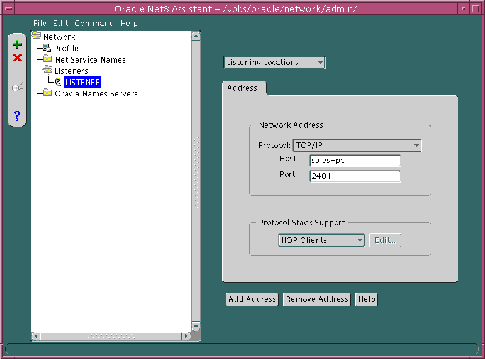
If you do not use port 2482 or 2483, follow the procedure in "Configuring a Non-Default Listener".
Use port number 2481 for TCP/IP or 2482 for TCP/IP with SSL for IIOP presentations. See the Oracle8i Enterprise JavaBeans and CORBA Developer's Guide documentation for further information.
In addition to the steps described in "Non-Default Configuration for Access through a Listener", perform the following steps for a non-default listener:
The non-default listener must be configured in the INITSID.ORA. How it is configured depends upon whether it is a local listener or a remote listener. Both scenarios are described in this section.
Local Listener
If you want the connection to go through a non-default local listener, INITSID.ORA must also be configured with the LOCAL_LISTENER parameter or the MTS_DISPATCHERS parameter's LISTENER attribute.
LOCAL_LISTENER parameter configuration is shown below:
local_listener=local_listener_name
mts_dispatchers="(protocol=tcp | tcps)
(presentation=oracle.aurora.server.SGiopServer |
oracle.aurora.server.GiopServer)"
MTS_DISPATCHERS parameter's LISTENER attribute configuration is shown
below:

mts_dispatchers="(protocol=tcp | tcps)
(presentation=oracle.aurora.server.SGiopServer |
oracle.aurora.server.GiopServer)(listener=local_Listener_name)"
| Parameter | Description |
|---|---|
|
LISTENER (LIS or LIST) |
Specifies the network name of the listener with which the dispatchers will register. It should be set to a name which is resolved through a naming method. |
If you want the connection to go through a remote listener, INITSID.ORA must be also configured with the MTS_DISPATCHERS parameter's LISTENER attribute:
mts_dispatchers="(protocol=tcp | tcps)
(presentation=oracle.aurora.server.SGiopServer |
oracle.aurora.server.GiopServer)(listener=remote_listener_name)"
In order for the dispatcher to register its information with a non-default listener, the listener name you specified for the LOCAL_LISTENER parameter or the MTS_DISPATCHERS parameter's LISTENER attribute must be resolved through a naming method, such as a TNSNAMES.ORA on the server or an Oracle Names server.
The entry should only contain the address of the listener, not the service name information in the CONNECT_DATA portion.
Configuring a TNSNAMES.ORA File
The Net8 Assistant does not allow you to configure a TNSNAMES.ORA without the CONNECT_DATA information. Therefore, Oracle Corporation recommends you create the TNSNAMES.ORA manually. For example, if you configured a listener named LISTENER1 with TCP/IP on port 2481, the entry in the TNSNAMES.ORA would look similar to the entry below:
listener1.us.oracle.com=
(description=
  (address=
     (protocol= tcp)
     (host= sales-pc)
     (port= 2481)
  )
)
Multiple addresses are supported, but multiple address connect-time failover and client load balancing features are not supported. Oracle Connection Manager's SOURCE_ROUTE parameter is supported.
Configuring an Oracle Names Server
An entry for the listener can be made through an Oracle Names server through the Net8 Assistant:
(address=(protocol= tcp)(host= sales-pc)(port= 2481))
To configure IIOP client connections to the Java option through a dispatcher, follow these steps:
MTS must be configured in the INITSID.ORA file in the following manner:
mts_dispatchers="(address=(protocol=tcp | tcps)(host=server_
host)(port=port))(dispatchers=1)(presentation=oracle.aurora.server.SGiopServer |
oracle.aurora.server.GiopServer)"
The attributes are described below:
| Parameter | Description |
|---|---|
|
ADDRESS (ADD or ADDR) |
Specifies the network address that the dispatchers will listen on. The network address may include either the TCP/IP (TCP) or the TCP/IP with SSL (TCPS) protocol, the host name of the server, and a GIOP listening port, which may be any port you choose that is not already in use. |
|
DISPATCHERS (DIS or DISP) |
The initial number of dispatchers to start. |
|
PRESENTATION (PRE or PRES) |
Valid values for GIOP presentation values include:
See the Oracle8i Enterprise JavaBeans and CORBA Developer's Guide for further information. |
Configure the same port on the client as you used to configure MTS to access the dispatcher directly. See the Oracle8i Enterprise JavaBeans and CORBA Developer's Guide for further information.
Oracle8i also supports the use of authentication data such as certificates and private keys required for use by SSL in combination with both types of GIOP protocols - regular GIOP and session-based GIOP. To use SSL with GIOP, you need to carry out two steps:
#mts_dispatchers="(address=(protocol=tcp)(host=server_host)(port=5555))
(dispatchers=1) (presentation=oracle.aurora.server.SGiopServer)"
#mts_dispatchers="(address=(protocol=tcp)(host=server_host)(port=5556))
(dispatchers=1) (presentation=oracle.aurora.server.GiopServer)"
If you uncomment these lines, ensure the client is configured with same port number.
See the Oracle Advanced Security Administrator's Guide for further information about configuring the SSL wallet.
Net8 supports connections to non-Oracle database services, including:
The network listener may also be statically configured to listen for External Procedure Calls. When a PL/SQL or SQL application calls an external procedure, the Net8 network listener launches a network session-specific process called EXTPROC. Through the network listener service, PL/SQL passes the following information to EXTPROC.
EXTPROC then loads the shared library and invokes the external procedure.
External procedures are configured by default after installation.
For environments where the external procedure information does not exist, edit the LISTENER.ORA and TNSNAMES.ORA files, located in $ORACLE_HOME/network/admin on UNIX and ORACLE_HOME\network\admin on Windows platforms, as follows:
listener=
  (address=
     (protocol=ipc)
     (key=extproco0)
   )
For more information about configuring listener protocol addresses, see "Configuring Listener Protocol Addresses".
sid_list_listener_name
  (sid_list=
    (sid_desc=
     (sid_name=plsextproc)
     (oracle_home=d:\orant)
      (program=extproc)
   )
  )
| Parameter | Description |
|---|---|
|
SID_NAME |
external procedure identifier |
|
ORACLE_HOME |
location of program executable |
|
PROGRAM |
external procedure program name |
For more information about configuring listener protocol addresses, see "Configuring a Listener with Service Information".
extproc_connection_data=
 (description=
   (address=(protocol=ipc)(key=extproc0))

   (connect_data=
    (sid=plsextproc))
   )
For more information about creating a net service name, see "Configuring the Network with the Local Naming Method".
Heterogeneous Services is an integrated component within the Oracle8i server, and provides the generic technology for accessing non-Oracle systems from the Oracle server. Heterogeneous Services enables you to:
While Heterogeneous Services provides the generic technology in the Oracle8i server, a Heterogeneous Services agent is required to access a particular non-Oracle system.
To initiate a connection to the non-Oracle system, the Oracle8i server starts an agent process through the Net8 listener on the gateway. For the Oracle8i server to be able to connect to the agent, perform the following steps:
-On UNIX, run netasst at $ORACLE_HOME/bin.
-On Windows NT, choose Start > Programs > Oracle - HOME_NAME > Network Administration > Net8 Assistant.
The Advanced Service Options dialog box appears:
The TNSNAMES.ORA file is re-created.
In the example below, a net service names in a TNSNAMES.ORA is configured for heterogeneous services:
megabase6_sales=
  (description=
    (address=
       (protocol=tcp)
       (host=dlsun206)
       (port=1521)
    )
    (connect_data=
     (service_name=sales6)
     (hs=ok)
    )
  )
To provide a listener with a new name use the Net8 Assistant:
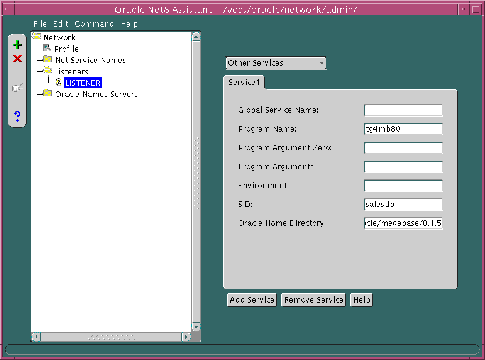
The LISTENER.ORA file is re-created.
An excerpt of a LISTENER.ORA file configured for heterogeneous service in the SID_LIST_listener_name section is shown below:
sid_list_listener=(sid_list=
 (sid_desc=
  (sid_name=salesdb)
  (oracle_home=/home/oracle/megabase/8.1.5)
  (program=tg4mb80)
  )
 )
The Net8 Assistant application exits.
For more information about Heterogeneous Services, see Oracle8i Distributed Database Systems.
Oracle Rdb is a database for Digital's 64-bit platforms. With Net8, Oracle Rdb servers appears the same way to clients as Oracle8i databases. Because Oracle Rdb has its own listener, the client interacts with Rdb in the same manner as it does with Oracle7.
To initiate a connection to an Oracle Rdb, set up a net service name to connect to the Oracle Rdb database using the following features:
For further configuration information, see your Oracle Rdb documentation.
To configure a client for an Oracle Rdb database, use the Net8 Assistant:
-On UNIX, run netasst at $ORACLE_HOME/bin.
-On Windows NT, choose Start > Programs > Oracle - HOME_NAME > Network Administration > Net8 Assistant.
The Advanced Service Options dialog box appears:
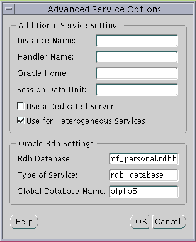
The TNSNAMES.ORA file is re-created.
In the example below, a net service name in a TNSNAMES.ORA is configured for an Oracle Rdb database:
alpha5= (description= (address=...) (connect_data= (service_name=generic) (rbd_database= [.mf]mf_personnel.rdb) (global_name= alpha5)))
In the example below, TYPE_OF_SERVICE is used to load balance between an Oracle Rdb database service or Oracle8i database service:
alpha5= (description_list= (description= (address=...) (connect_data= (service_name=generic) (rbd_database= [.mf]mf_personnel.rdb) (global_name= alpha5))) (description= (address=...) (connect_data= (service_name=sales.com)) (type_of_service=oracle8_database))