Release 8.1.5
A67792-01
 Library |
 Product |
 Contents |
 Index |
| Oracle8i Utilities Release 8.1.5 A67792-01 |
|


This chapter describes how to use the Import utility, which reads an export file into an Oracle database.
Import reads only files created by Export. For information on how to export a database, see Chapter 1, "Export". To load data from other operating system files, see the discussion of SQL*Loader in Part II of this manual.
This chapter discusses the following topics:
The basic concept behind Import is very simple. Import inserts the data objects extracted from one Oracle database by the Export utility (and stored in an Export dump file) into another Oracle database. Export dump files can only be read by Import. See Chapter 1, "Export" for more information about Oracle's Export utility.
Import reads the object definitions and table data that the Export utility extracted from an Oracle database and stored in an Oracle binary-format Export dump file located typically on disk or tape.
Such files are typically FTPed or physically transported (in the case of tape) to a different site and used, with the Import utility, to transfer data between databases that are on machines not connected via a network or as backups in addition to normal backup procedures.
Note: Export dump files can only be read by the Oracle utility Import. If you need to load data from ASCII fixed-format or delimited files, see Part II, SQL*Loader of this manual.
The Export and Import utilities can also facilitate certain aspects of Oracle Advanced Replication functionality like offline instantiation. See Oracle8i Replication for more information.
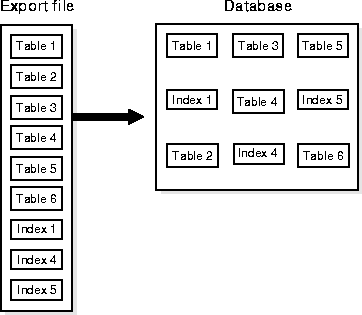
Figure 2-1 illustrates the process of importing from an Export dump file.
The following Import features are new as of this release of Oracle:
Table objects are imported as they are read from the export file. The export file contains objects in the following order:
First, new tables are created. Then, data is imported and indexes are built. Then triggers are imported, integrity constraints are enabled on the new tables, and any bitmap, functional, and/or domain indexes are built. This sequence prevents data from being rejected due to the order in which tables are imported. This sequence also prevents redundant triggers from firing twice on the same data (once when it was originally inserted and again during the import).
For example, if the EMP table has a referential integrity constraint on the DEPT table and the EMP table is imported first, all EMP rows that reference departments that have not yet been imported into DEPT would be rejected if the constraints were enabled.
When data is imported into existing tables, however, the order of import can still produce referential integrity failures. In the situation just given, if the EMP table already existed and referential integrity constraints were in force, many rows could be rejected.
A similar situation occurs when a referential integrity constraint on a table references itself. For example, if SCOTT's manager in the EMP table is DRAKE, and DRAKE's row has not yet been loaded, SCOTT's row will fail, even though it would be valid at the end of the import.
Suggestion: For the reasons mentioned previously, it is a good idea to disable referential constraints when importing into an existing table. You can then re-enable the constraints after the import is completed.
Import can read export files created by Export Version 5.1.22 and later.
The Import utility provides four modes of import. The objects that are imported depend on the Import mode you choose and the mode that was used during the export. All users have two choices of import mode. A user with the
IMP_FULL_DATABASE role (a privileged user) has four choices:
See Import Parameters for information on specifying each mode.
A user with the IMP_FULL_DATABASE role must specify one of these options or specify an incremental import. Otherwise, an error results. If a user without the IMP_FULL_DATABASE role fails to specify one of these options, a user-level import is performed.
Table 1-1 shows the objects that are exported and imported in each mode.
You can import tables, partitions and subpartitions in the following ways:
You must set the parameter IGNORE=Y when loading data into an existing table. See IGNORE for more information.
For each specified table, table-level Import imports all of the table's rows. With table-level Import:
If the table does not exist, and if the exported table was partitioned, table-level Import creates a partitioned table. If the table creation is successful, table-level Import reads all of the source data from the export file into the target table. After Import, the target table contains the partition definitions of all of the partitions and subpartitions associated with the source table in the Export file. This operation ensures that the physical and logical attributes (including partition bounds) of the source partitions are maintained on Import.
Partition-level Import imports a set of partitions or subpartitions from a source table into a target table. Note the following points:
For information see Using Table-Level and Partition-Level Export and Import.
This section describes what you need to do before you begin importing and how to invoke and use the Import utility.
To use Import, you must run either the script CATEXP.SQL or CATALOG.SQL (which runs CATEXP.SQL) after the database has been created or migrated to release 8.1.
Additional Information: The actual names of the script files depend on your operating system. The script file names and the method for running them are described in your Oracle operating system-specific documentation.
CATEXP.SQL or CATALOG.SQL need to be run only once on a database. You do not need to run either script again before performing future import operations. Both scripts perform the following tasks to prepare the database for Import:
You can invoke Import in three ways:
imp username/password PARFILE=filename
PARFILE is a file containing the Import parameters you typically use. If you use different parameters for different databases, you can have multiple parameter files. This is the recommended method. See The Parameter File for information on how to use the parameter file.
imp username/password <parameters>
replacing <parameters> with various parameters you intend to use. Note that the number of parameters cannot exceed the maximum length of a command line on your operating system.
imp username/password
to begin an interactive session, and let Import prompt you for the information it needs. Note that the interactive method does not provide as much functionality as the parameter-driven method. It exists for backward compatibility.
You can use a combination of the first and second options. That is, you can list parameters both in the parameters file and on the command line. In fact, you can specify the same parameter in both places. The position of the PARFILE parameter and other parameters on the command line determines what parameters override others. For example, assume the parameters file params.dat contains the parameter INDEXES=Y and Import is invoked with the following line:
imp system/manager PARFILE=params.dat INDEXES=N
In this case, because INDEXES=N occurs after PARFILE=params.dat, INDEXES=N overrides the value of the INDEXES parameter in the PARFILE.
You can specify the username and password in the parameter file, although, for security reasons, this is not recommended.
If you omit the username and password, Import prompts you for it.
See Import Parameters for a description of each parameter.
Typically, you should not need to invoke Import as SYSDBA. However, there may be a few situations in which you need to do so, usually with the help of Oracle Technical Support.
To invoke Import as SYSDBA, use the following syntax:
imp username/password AS SYSDBA
or, optionally
imp username/password@instance AS SYSDBA
Note: Since the string "AS SYSDBA" contains a blank, most operating systems require that entire string 'username/password AS SYSDBA' be placed in quotes or marked as a literal by some method. Note that some operating systems also require that quotes on the command line be escaped as well. Please see your operating system-specific Oracle documentation for information about special and reserved characters on your system.
Note that if either the username or password is omitted, Import will prompt you for it.
If you use the Import interactive mode, you will not be prompted to specify whether you want to connect as SYSDBA or @instance. You must specify "AS SYSDBA" and/or "@instance" with the username.
Import provides online help. Enter imp help=y on the command line to see a help printout like the one shown below.
> imp help=y

Import: Release 8.1.5.0.0 - Production on Wed Oct 28 15:00:44 1998

(c) Copyright 1998 Oracle Corporation.  All rights reserved.


You can let Import prompt you for parameters by entering the IMP
command followed by your username/password:

     Example: IMP SCOTT/TIGER

Or, you can control how Import runs by entering the IMP command followed
by various arguments. To specify parameters, you use keywords:

     Format:  IMP KEYWORD=value or KEYWORD=(value1,value2,...,valueN)
     Example: IMP SCOTT/TIGER IGNORE=Y TABLES=(EMP,DEPT) FULL=N
               or TABLES=(T1:P1,T1:P2), if T1 is partitioned table

USERID must be the first parameter on the command line.

Keyword  Description (Default)       Keyword      Description (Default)
--------------------------------------------------------------------------
USERID   username/password           FULL         import entire file (N)
BUFFER   size of data buffer         FROMUSER     list of owner usernames
FILE     input files (EXPDAT.DMP)    TOUSER       list of usernames
SHOW     just list file contents (N) TABLES       list of table names
IGNORE   ignore create errors (N)    RECORDLENGTH length of IO record
GRANTS   import grants (Y)           INCTYPE      incremental import type
INDEXES  import indexes (Y)          COMMIT       commit array insert (N)
ROWS     import data rows (Y)        PARFILE      parameter filename
LOG      log file of screen output   CONSTRAINTS  import constraints (Y)
DESTROY  overwrite tablespace data file (N)
INDEXFILE write table/index info to specified file
SKIP_UNUSABLE_INDEXES  skip maintenance of unusable indexes (N)
ANALYZE  execute ANALYZE statements in dump file (Y)
FEEDBACK display progress every x rows(0)
TOID_NOVALIDATE  skip validation of specified type ids
FILESIZE maximum size of each dump file
RECALCULATE_STATISTICS recalculate statistics (N)
VOLSIZE  number of bytes in file on each volume of a file on tape

The following keywords only apply to transportable tablespaces
TRANSPORT_TABLESPACE import transportable tablespace metadata (N)
TABLESPACES tablespaces to be transported into database
DATAFILES datafiles to be transported into database
TTS_OWNERS users that own data in the transportable tablespace set

Import terminated successfully without warnings.
The parameter file allows you to specify Import parameters in a file where they can be easily modified or reused. Create a parameter file using any flat file text editor. The command line option PARFILE=<filename> tells Import to read the parameters from the specified file rather than from the command line. For example:
imp parfile=filename
or
imp username/password parfile=filename
The syntax for parameter file specifications is one of the following:
KEYWORD=value
KEYWORD=(value)
KEYWORD=(value1, value2, ...)
You can add comments to the parameter file by preceding them with the pound (#) sign. All characters to the right of the pound (#) sign are ignored. The following is an example of a partial parameter file listing:
FULL=y
FILE=DBA.DMP
GRANTS=Y
INDEXES=Y # import all indexes
See Import Parameters for a description of each parameter.
This section describes the privileges you need to use the Import utility and to import objects into your own and others' schemas.
To use Import, you need the privilege CREATE SESSION to log on to the Oracle server. This privilege belongs to the CONNECT role established during database creation.
You can do an import even if you did not create the export file. However, if the export file was created by someone other than you, you can import that file only if you have the IMP_FULL_DATABASE role.
Table 2-1 lists the privileges required to import objects into your own schema. All of these privileges initially belong to the RESOURCE role.
To import the privileges that a user has granted to others, the user initiating the import must either own the objects or have object privileges with the WITH GRANT OPTION. Table 2-2 shows the required conditions for the authorizations to be valid on the target system.
Table 2-2 Privileges Required to Import Grants
To import objects into another user's schema, you must have the IMP_FULL_DATABASE role enabled.
To import system objects from a full database export file, the role IMP_FULL_DATABASE must be enabled. The parameter FULL specifies that these system objects are included in the import when the export file is a full export:
When user definitions are imported into an Oracle database, they are created with the CREATE USER command. So, when importing from export files created by previous versions of Export, users are not granted CREATE SESSION privileges automatically.
This section describes factors to take into account when you import data into existing tables.
When you choose to create tables manually before importing data into them from an export file, you should use either the same table definition previously used or a compatible format. For example, while you can increase the width of columns and change their order, you cannot do the following:
In the normal import order, referential constraints are imported only after all tables are imported. This sequence prevents errors that could occur if a referential integrity constraint existed for data that has not yet been imported.
These errors can still occur when data is loaded into existing tables, however. For example, if table EMP has a referential integrity constraint on the MGR column that verifies the manager number exists in EMP, a perfectly legitimate employee row might fail the referential integrity constraint if the manager's row has not yet been imported.
When such an error occurs, Import generates an error message, bypasses the failed row, and continues importing other rows in the table. You can disable constraints manually to avoid this.
Referential constraints between tables can also cause problems. For example, if the EMP table appears before the DEPT table in the export file, but a referential check exists from the EMP table into the DEPT table, some of the rows from the EMP table may not be imported due to a referential constraint violation.
To prevent errors like these, you should disable referential integrity constraints when importing data into existing tables.
When the constraints are re-enabled after importing, the entire table is checked, which may take a long time for a large table. If the time required for that check is too long, it may be beneficial to order the import manually.
To do so, do several imports from an export file instead of one. First, import tables that are the targets of referential checks, before importing the tables that reference them. This option works if tables do not reference each other in circular fashion, and if a table does not reference itself.
The following diagrams show the syntax for the parameters that you can specify in the parameter file or on the command line:

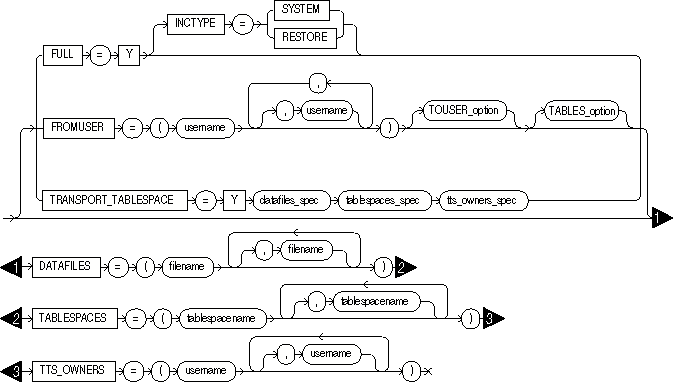
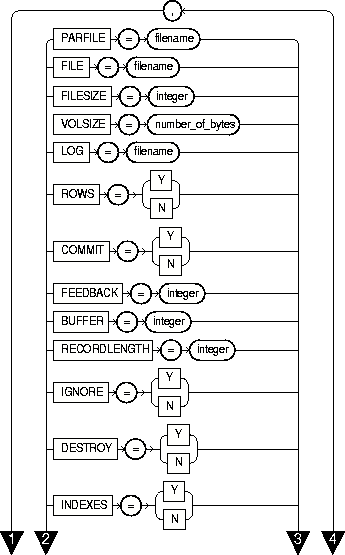
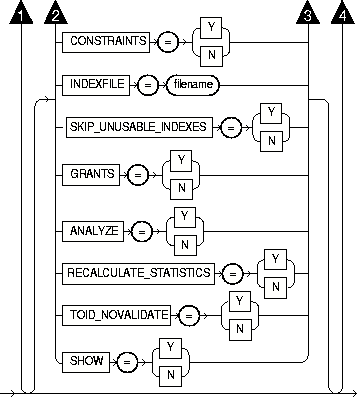
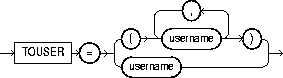
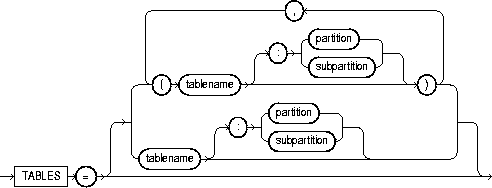
The following sections describe parameter functionality and default values.
Default: Y
Specifies whether or not the Import utility executes SQL ANALYZE statements found in the export file or loads optimizer statistics for tables, indexes, and columns that were precomputed on the Export system. See also the Import parameter RECALCULATE_STATISTICS and Importing Statistics.
Default: operating system-dependent
The buffer-size is the size, in bytes, of the buffer through which data rows are transferred.
The parameter BUFFER (buffer size) determines the number of rows in the array inserted by Import. The following formula gives an approximation of the buffer size that inserts a given array of rows:
buffer_size = rows_in_array * maximum_row_size
For tables containing LONG, LOB, BFILE, REF, ROWID, DATE, or type columns, rows are inserted individually. The size of the buffer must be large enough to contain the entire row, except for LOB and LONG columns. If the buffer cannot hold the longest row in a table, Import attempts to allocate a larger buffer.
Additional Information: See your Oracle operating system-specific documentation to determine the default value for this parameter.
Note: This parameter applies to Oracle Version 5 and 6 export files only. Use of this parameter is not recommended. It is provided only for compatibility with previous versions. Eventually, it will no longer be supported. See The CHARSET Parameter if you still need to use this parameter.
Default: N
Specifies whether Import should commit after each array insert. By default, Import commits only after loading each table, and Import performs a rollback when an error occurs, before continuing with the next object.
If a table has nested table columns or attributes, the contents of the nested tables are imported as separate tables. Therefore, the contents of the nested tables are always committed in a transaction distinct from the transaction used to commit the outer table.
If COMMIT=N and a table is partitioned, each partition and subpartition in the Export file is imported in a separate transaction.
Specifying COMMIT=Y prevents rollback segments from growing inordinately large and improves the performance of large imports. Specifying COMMIT=Y is advisable if the table has a uniqueness constraint. If the import is restarted, any rows that have already been imported are rejected with a non-fatal error.
Note that, if a table does not have a uniqueness constraint, Import could produce duplicate rows when you re-import the data.
For tables containing LONG, LOB, BFILE, REF, ROWID, UROWID, DATE or type columns, array inserts are not done. If COMMIT=Y, Import commits these tables after each row.
Default: Y
Specifies whether or not table constraints are to be imported. Note that the default is to import constraints. If you do not want constraints to be imported, you must set this parameter's value to N.
Default: none
When TRANSPORT_TABLESPACE is specified as Y, use this parameter to list the datafiles to be transported into the database.
See Transportable Tablespaces for more information.
Default: N
Specifies whether or not the existing data files making up the database should be reused. That is, specifying DESTROY=Y causes Import to include the REUSE option in the datafile clause of the CREATE TABLESPACE command which causes Import to reuse the original database's data files after deleting their contents.
Note that the export file contains the datafile names used in each tablespace. If you specify DESTROY=Y and attempt to create a second database on the same machine (for testing or other purposes), the Import utility will overwrite the first database's data files when it creates the tablespace. In this situation you should use the default, DESTROY=N, so that an error occurs if the data files already exist when the tablespace is created. Also, when you need to import into the original database, you will need to specify IGNORE=Y to add to the existing data files without replacing them.
Warning: If datafiles are stored on a raw device, DESTROY=N does not prevent files from being overwritten.
Default: 0 (zero)
Specifies that Import should display a progress meter in the form of a dot for n number of rows imported. For example, if you specify FEEDBACK=10, Import displays a dot each time 10 rows have been imported. The FEEDBACK value applies to all tables being imported; it cannot be set on a per-table basis.
Default: expdat.dmp
Specifies the names of the export files to import. The default extension is .dmp. Since Export supports multiple export files (see the parameter FILESIZE below), you may need to specify multiple filenames to be imported.
You need not be the user who exported the export files, however, you must have read access to the files. If you were not the exporter of the export files, you must also have the IMP_FULL_DATABASE role granted to you.
Export supports writing to multiple export files and Import can read from multiple export files. If, on export, you specify a value (byte limit) for the Export FILESIZE parameter, Export will write only the number of bytes you specify to each dump file. On import, you must use the Import parameter FILESIZE to tell Import the maximum dump file size you specified on export.
Note: The maximum value that can be stored in a file is operating system dependent. You should verify this maximum value in your operating-system specific documentation before specifying FILESIZE.
The FILESIZE value can be specified as a number followed by K (number of kilobytes). For example, FILESIZE=2K is the same as FILESIZE=2048. Similarly, M specifies megabytes (1024 * 1024) while G specifies gigabytes (1024**3). B remains the shorthand for bytes; the number is not multiplied to get the final file size (FILESIZE=2048b is the same as FILESIZE=2048)
Default: none
A comma-separated list of schemas to import. This parameter is relevant only to users with the IMP_FULL_DATABASE role. The parameter enables you to import a subset of schemas from an export file containing multiple schemas (for example, a full export dump file or a multi-schema, user mode export dump file).
You will typically use FROMUSER in conjunction with the Import parameter TOUSER which you use to specify a list of usernames whose schemas will be targets for import (see TOUSER). However, if you omit specifying TOUSER, Import will:
Note: Specifying FROMUSER=SYSTEM causes only schema objects belonging to user SYSTEM to be imported, it does not cause system objects to be imported.
Default: N
Specifies whether to import the entire export file.
Default: Y
Specifies whether to import object grants.
By default, the Import utility imports any object grants that were exported. If the export was a user-mode Export, the export file contains only first-level object grants (those granted by the owner).
If the export was a full database mode Export, the export file contains all object grants, including lower-level grants (those granted by users given a privilege with the WITH GRANT OPTION). If you specify GRANTS=N, the Import utility does not import object grants. (Note that system grants are imported even if GRANTS=N.
Note: Export does not export grants on data dictionary views for security reasons that affect Import. If such grants were exported, access privileges would be changed and the importer would not be aware of this.
Default: N
Displays a description of the Import parameters.
Default: N
Specifies how object creation errors should be handled. If you specify IGNORE=Y, Import overlooks object creation errors when it attempts to create database objects. If you specify IGNORE=Y, Import continues without reporting the error. Note that even if IGNORE=Y, Import does not replace an existing object, instead, it will skip the object. Note that, even if you specify IGNORE=Y, Import does not replace an existing object, instead, it skips the object.
If you accept the default, IGNORE=N, Import logs and/or displays the object creation error before continuing.
For tables, IGNORE=Y causes rows to be imported into existing tables. No message is given. If a table already exists, IGNORE=N causes an error to be reported, and the table is skipped with no rows inserted. Also, objects dependent on tables, such as indexes, grants, and constraints, won't be created if a table already exists and IGNORE=N.
Note that only object creation errors are ignored; other errors, such as operating system, database, and SQL errors, are not ignored and may cause processing to stop.
In situations where multiple refreshes from a single export file are done with IGNORE=Y, certain objects can be created multiple times (although they will have unique system-defined names). You can prevent this for certain objects (for example, constraints) by doing an import with the value of the parameter CONSTRAINTS set to N. Note that, if you do a full import with the CONSTRAINTS parameter set to N, no constraints for any tables are imported.
If you want to import data into tables that already exist-- perhaps because you want to use new storage parameters, or because you have already created the table in a cluster -- specify IGNORE=Y. The Import utility imports the rows of data into the existing table.
Warning: When you import into existing tables, if no column in the table is uniquely indexed, rows could be duplicated if they were already present in the table. (This warning applies to non-incremental imports only. Incremental imports replace the table from the last complete export and then rebuild it to its last backup state from a series of cumulative and incremental exports.)
Default: undefined
Specifies the type of incremental import.
The options are:
See Importing Incremental, Cumulative, and Complete Export Files for more information about the INCTYPE parameter.
Default: Y
Specifies whether or not to import indexes. System-generated indexes such as LOB indexes, OID indexes, or unique constraint indexes are re-created by Import regardless of the setting of this parameter.
You can postpone all user-generated index creation until after Import completes by specifying INDEXES = N.
If indexes for the target table already exist at the time of the import, Import performs index maintenance when data is inserted into the table.
Default: none
Specifies a file to receive index-creation commands.
When this parameter is specified, index-creation commands for the requested mode are extracted and written to the specified file, rather than used to create indexes in the database. No database objects are imported.
If the Import parameter CONSTRAINTS is set to Y, Import also writes table constraints to the index file.
The file can then be edited (for example, to change storage parameters) and used as a SQL script to create the indexes.
To make it easier to identify the indexes defined in the file, the export file's CREATE TABLE statements and CREATE CLUSTER statements are included as comments.
Perform the following steps to use this feature:
[This step imports the database objects while preventing Import from using the index definitions stored in the export file.]
The INDEXFILE parameter can be used only with the FULL=Y, FROMUSER, TOUSER, or TABLES parameters.
Default: none
Specifies a file to receive informational and error messages. If you specify a log file, the Import utility writes all information to the log in addition to the terminal display.
Default: undefined
Specifies a filename for a file that contains a list of Import parameters. For more information on using a parameter file, see The Parameter File.
Default: N
Setting this parameter to Y will cause database optimizer statistics to generate when the exported data is imported. See the Oracle8i Concepts manual for information about the optimizer and the statistics it uses. See also the Export parameter STATISTICS, the Import parameter ANALYZE and Importing Statistics
Default: operating system-dependent
Specifies the length, in bytes, of the file record. The RECORDLENGTH parameter is necessary when you must transfer the export file to another operating system that uses a different default value.
If you do not define this parameter, it defaults to your platform-dependent value for BUFSIZ. For more information about the BUFSIZ default value, see your operating system-specific documentation.
You can set RECORDLENGTH to any value equal to or greater than your system's BUFSIZ. (The highest value is 64KB.) Changing the RECORDLENGTH parameter affects only the size of data that accumulates before writing to the database. It does not affect the operating system file block size.
Note: You can use this parameter to specify the size of the Import I/O buffer.
Additional Information: See your Oracle operating system-specific documentation to determine the proper value or to create a file with a different record size.
Default: Y
Specifies whether or not to import the rows of table data.
Default: N
When you specify SHOW, the contents of the export file are listed to the display and not imported. The SQL statements contained in the export are displayed in the order in which Import will execute them.
The SHOW parameter can be used only with the FULL=Y, FROMUSER, TOUSER, or TABLES parameters.
Default: N
Specifies whether or not Import skips building indexes that were set to the Index Unusable state (set by either system or user). Refer to "ALTER SESSION SET SKIP_UNUSABLE_INDEXES=TRUE" in the Oracle8i SQL Reference manual for details. Other indexes (not previously set Index Unusable) continue to be updated as rows are inserted.
This parameter allows you to postpone index maintenance on selected index partitions until after row data has been inserted. You then have the responsibility to rebuild the affected index partitions after the Import.
You can use the INDEXFILE parameter in conjunction with INDEXES = N to provide the SQL scripts for re-creating the index. Without this parameter, row insertions that attempt to update unusable indexes fail.
Default: none
Specifies a list of table names to import. Use an asterisk (*) to indicate all tables. When specified, this parameter initiates a table mode import, which restricts the import to tables and their associated objects, as listed in Table 1-1. The number of tables that can be specified at the same time is dependent on command line limits.
Although you can qualify table names with schema names (as in SCOTT.EMP) when exporting, you cannot do so when importing. In the following example, the TABLES parameter is specified incorrectly:
imp system/manager TABLES=(jones.accts, scott.emp,scott.dept)
The valid specification to import these tables is:
imp system/manager FROMUSER=jones TABLES=(accts)
imp system/manager FROMUSER=scott TABLES=(emp,dept)
Additional Information: Some operating systems, such as UNIX, require that you use escape characters before special characters, such as a parenthesis, so that the character is not treated as a special character. On UNIX, use a backslash (\) as the escape character, as shown in the following example:
TABLES=\(EMP,DEPT\)
Table names specified on the command line or in the parameter file cannot include a pound (#) sign, unless the table name is enclosed in quotation marks.
For example, if the parameter file contains the following line, Import interprets everything on the line after EMP# as a comment. As a result, DEPT and MYDATA are not imported.
TABLES=(EMP#, DEPT, MYDATA)
However, if the parameter file contains the following line, the Import utility imports all three tables:
TABLES=("EMP#", DEPT, MYDATA)
Attention: When you specify the table name in quotation marks, it is case sensitive. The name must exactly match the table name stored in the database. By default, database names are stored as uppercase.
Additional Information: Some operating systems require single quotes instead of double quotes. See your Oracle operating system-specific documentation.
Default: none
When TRANSPORT_TABLESPACE is specified as Y, use this parameter to provide a list of tablespaces to be transported into the database.
See Transportable Tablespaces for more information.
Default: none
When you import a table that references a type, but a type of that name already exists in the database, Import attempts to verify that the pre-existing type is in fact the type used by the table (rather than a different type that just happens to have the same name).
To do this, Import compares the type's unique identifier (TOID) with the identifier stored in the export file, and will not import the table rows if the TOIDs do not match.
In some situations, you may not want this validation to occur on specified types (for example, if the types were created by a cartridge installation). You can use the TOID_NOVALIDATE parameter to specify types to exclude from TOID comparison.
The syntax is
toid_novalidate=([schema-name.]type-name [, ...])
For example:
imp scott/tiger table=foo toid_novalidate=bar
imp scott/tiger table=foo toid_novalidate=(fred.type0,sally.type2,type3)
If you do not specify a schema-name for the type, it defaults to the schema of the importing user. For example, in the first example above, the type "bar" defaults to "scott.bar".
The output of a typical import with excluded types would contain entries similar to the following:
[...]
. importing IMP3's objects into IMP3
. . skipping TOID validation on type IMP2.TOIDTYP0
. . importing table                  "TOIDTAB3"
[...]
Note: When you inhibit validation of the type identifier, it is your responsibility to ensure that the attribute list of the imported type matches the attribute list of the existing type. If these attribute lists do not match, results are unpredictable.
Default: none
Specifies a list of usernames whose schemas will be targets for import. The
IMP_FULL_DATABASE role is required to use this parameter. To import to a different schema than the one that originally contained the object, specify TOUSER. For example:
imp system/manager FROMUSER=scott TOUSER=joe TABLES=emp
If multiple schemas are specified, the schema names are paired. The following example imports SCOTT's objects into JOE's schema, and FRED's objects into TED's schema:
imp system/manager FROMUSER=scott,fred TOUSER=joe,ted
Note: If the FROMUSER list is longer than the TOUSER list, the remaining schemas will be imported into either the FROMUSER schema, or into the importer's schema, based on normal defaulting rules. You can use the following syntax to ensure that any extra objects go into the TOUSER schema:
imp system/manager FROMUSER=scott,adams TOUSER=ted,ted
Note that user Ted is listed twice.
Default: N
When specified as Y, instructs Import to import transportable tablespace metadata from an export file.
See Transportable Tablespaces for more information.
Default: none
When TRANSPORT_TABLESPACE is specified as Y, use this parameter to list the users who own the data in the transportable tablespace set.
See Transportable Tablespaces for more information.
Default: undefined
Specifies the username/password (and optional connect string) of the user performing the import.
USERID can also be:
username/password AS SYSDBA
or
username/password@instance AS SYSDBA
See Invoking Import as SYSDBA for more information. Note also that your operating system may require you to treat AS SYSDBA as a special string requiring you to enclose the entire string in quotes as described.
Optionally, you can specify the @connect_string clause for Net8. See the user's guide for your Net8 protocol for the exact syntax of @connect_string.
Specifies the maximum number of bytes in an export file on each volume of tape.
The VOLSIZE parameter has a maximum value equal to the maximum value that can be stored in 64 bits. See your Operating system-specific documentation for more information.
The VOLSIZE value can be specified as number followed by K (number of kilobytes). For example, VOLSIZE=2K is the same as VOLSIZE=2048. Similarly, M specifies megabytes (1024 * 1024) while G specifies gigabytes (1024**3). B remains the shorthand for bytes; the number is not multiplied to get the final file size (VOLSIZE=2048b is the same as VOLSIZE=2048)
Both table-level Export and partition-level Export can migrate data across tables, partitions, and subpartitions.
This section provides more detailed information about partition-level Import. For general information, see Understanding Table-Level and Partition-Level Import.
Partition-level Import cannot import a non-partitioned exported table. However, a partitioned table can be imported from a non-partitioned exported table using table-level Import. Partition-level Import is legal only if the source table (that is, the table called tablename at export time) was partitioned and exists in the Export file.
If ROWS = Y (default), and the table does not exist in the Import target system, the table is created and all rows from the source partition or subpartition are inserted into the target table's partition or subpartition.
If ROWS = Y (default) and IGNORE=Y, but the table already existed before Import, all the rows for the specified partition or subpartition in the table are inserted into the table. The rows are stored according to the existing partitioning scheme of the target table.
If the target table is partitioned, Import reports any rows that are rejected because they fall above the highest partition of the target table.
If ROWS = N, Import does not insert data into the target table and continues to process other objects associated with the specified table and partition or subpartition in the file.
If the target table is non-partitioned, the partitions and subpartitions are imported into the entire table. Import requires IGNORE = Y to import one or more partitions or subpartitions from the Export file into a non-partitioned table on the import target system.
The presence of a table-name:partition-name with the TABLES parameter results in reading from the Export file only data rows from the specified source partition or subpartition. If you do not specify the partition or subpartition name, the entire table is used as the source. If you specify a partition name for a composite partition, all subpartitions within the composite partition are used as the source.
Import issues a warning if the specified partition or subpartition is not in the export file.
Data exported from one or more partitions or subpartitions can be imported into one or more partitions or subpartitions. Import inserts rows into partitions or subpartitions based on the partitioning criteria in the target table.
In the following example, the partition specified by the partition-name is a composite partition. All of its subpartitions will be imported:
imp system/manager FILE = export.dmp FROMUSER = scott TABLES=b:py
The following example causes row data of partitions qc and qd of table scott.e to be imported into the table scott.e:
imp scott/tiger FILE = export.dmp TABLES = (e:qc, e:qd) IGNORE=y
If table "e" does not exist in the Import target database, it is created and data is inserted into the same partitions. If table "e" existed on the target system before Import, the row data is inserted into the partitions whose range allows insertion. The row data can end up in partitions of names other than qc and qd.
Note: With partition-level Import to an existing table, you must set up the target partitions or subpartitions properly and use IGNORE=Y.
This section gives some examples of import sessions that show you how to use the parameter file and command-line methods. The examples illustrate four scenarios:
In this example, using a full database export file, an administrator imports the DEPT and EMP tables into the SCOTT schema.
> imp system/manager parfile=params.dat
The params.dat file contains the following information:
FILE=dba.dmp
SHOW=n
IGNORE=n
GRANTS=y
FROMUSER=scott
TABLES=(dept,emp)
> imp system/manager file=dba.dmp fromuser=scott tables=(dept,emp)
Import: Release 8.1.5.0.0 - Production on Fri Oct 30 09:41:18 1998

(c) Copyright 1998 Oracle Corporation.  All rights reserved.

Connected to: Oracle8 Enterprise Edition Release 8.1.5.0.0 - Production
With the Partitioning option
PL/SQL Release 8.1.5.0.0 - Production

Export file created by EXPORT:V08.01.05 via conventional path
import done in WE8DEC character set and WE8DEC NCHAR character set
. importing SCOTT's objects into SCOTT
. . importing table                         "DEPT"          4 rows imported
. . importing table                          "EMP"         14 rows imported
Import terminated successfully without warnings.
This example illustrates importing the UNIT and MANAGER tables from a file exported by BLAKE into the SCOTT schema.
> imp system/manager parfile=params.dat
The params.dat file contains the following information:
FILE=blake.dmp
SHOW=n
IGNORE=n
GRANTS=y
ROWS=y
FROMUSER=blake
TOUSER=scott
TABLES=(unit,manager)
> imp system/manager fromuser=blake touser=scott file=blake.dmp tables=(unit,manager)
Import: Release 8.1.5.0.0 - Production on Fri Oct 30 09:41:34 1998

(c) Copyright 1998 Oracle Corporation.  All rights reserved.

Connected to: Oracle8 Enterprise Edition Release 8.1.5.0.0 - Production
With the Partitioning option
PL/SQL Release 8.1.5.0.0 - Production

Export file created by EXPORT:V08.01.05 via conventional path

Warning: the objects were exported by BLAKE, not by you

import done in WE8DEC character set and WE8DEC NCHAR character set
. . importing table                         "UNIT"          4 rows imported
. . importing table                      "MANAGER"          4 rows imported
Import terminated successfully without warnings.
In this example, a DBA imports all tables belonging to SCOTT into user BLAKE's account.
> imp system/manager parfile=params.dat
The params.dat file contains the following information:
FILE=scott.dmp
FROMUSER=scott
TOUSER=blake
TABLES=(*)
> imp system/manager file=scott.dmp fromuser=scott touser=blake tables=(*)
Import: Release 8.1.5.0.0 - Production on Fri Oct 30 09:41:36 1998

(c) Copyright 1998 Oracle Corporation.  All rights reserved.

Connected to: Oracle8 Enterprise Edition Release 8.1.5.0.0 - Production
With the Partitioning option
PL/SQL Release 8.1.5.0.0 - Production

Export file created by EXPORT:V08.01.05 via conventional path

Warning: the objects were exported by SCOTT, not by you

import done in WE8DEC character set and WE8DEC NCHAR character set
. . importing table                        "BONUS"          0 rows imported
. . importing table                         "DEPT"          4 rows imported
. . importing table                          "EMP"         14 rows imported
. . importing table                     "SALGRADE"          5 rows imported
Import terminated successfully without warnings.
This section describes an import of a table with multiple partitions, a table with partitions and subpartitions, and repartitioning a table on different columns.
In this example, emp is a partitioned table with three partitions, p1, p2 and p3.
A table-level export file was created using the following command:
> exp scott/tiger tables=emp file=exmpexp.dat rows=y

About to export specified tables via Conventional Path --
. . exporting table                       EMP
. . exporting partition                        P1          7 rows exported
. . exporting partition                        P2         12 rows exported
. . exporting partition                        P3          3 rows exported

Export terminated successfully without warnings.
In a partition-level import you can specify the specific partitions of an exported table that you want to import. In this example, p1 and p3 of table emp:
> imp scott/tiger tables=(emp:p1,emp:p3) file=exmpexp.dat rows=y

Export file created by EXPORT:V08.01.05 via direct path
import done in WE8DEC character set and WE8DEC NCHAR character set
. importing SCOTT's objects into SCOTT
. . importing partition            "EMP":"P1"                    7 rows imported
. . importing partition            "EMP":"P3"                    3 rows imported
Import terminated successfully without warnings.
This example demonstrates that the partitions and subpartitions of a composite partitioned table are imported. Emp is a partitioned table with two composite partitions p1 and p2. P1 has three subpartitions p1_sp1, p1_sp2 and p1_sp3 and p2 has two subpartitions p2_sp1 and p2_sp2.
A table-level export file was created using the following command:
> exp scott/tiger tables=emp file=exmpexp.dat rows=y

About to export specified tables via Conventional Path --
. . exporting table                       EMP
. . exporting partition                        P1
. . exporting subpartition                     P1_SP1         11 rows exported
. . exporting subpartition                     P1_SP2         17 rows exported
. . exporting subpartition                     P1_SP3          3 rows exported
. . exporting partition                        P2
. . exporting subpartition                     P2_SP1          5 rows exported
. . exporting subpartition                     P2_SP2         12 rows exported

Export terminated successfully without warnings.
The following import command results in the importing of subpartition p1_sp2 and p1_sp3 of composite partition p1 in table emp and all the subpartitions of composite partition p2 in table emp.
> imp scott/tiger tables=(emp:p1_sp2,emp:p1_sp3,emp:p2) file=exmpexp.dat rows=y

Export file created by EXPORT:V08.01.05 via conventional path
import done in WE8DEC character set and WE8DEC NCHAR character set
. importing SCOTT's objects into SCOTT
. . importing table               EMP
. . importing subpartition        "EMP":"P1_SP2"               17 rows imported
. . importing subpartition        "EMP":"P1_SP3"                3 rows imported
. . importing subpartition        "EMP":"P2_SP1"                5 rows imported
. . importing subpartition        "EMP":"P2_SP2"               12 rows imported

Import terminated successfully without warnings.
This example assumes the EMP table has two partitions, based on the EMPNO column. This example repartitions the EMP table on the DEPTNO coumn.
Perform the following steps to repartition a table on a different column:
The following example shows how to repartition a table on a different column:
> exp scott/tiger tables=emp file=empexp.dat


About to export specified tables via Conventional Path ...
. . exporting table                          EMP
. . exporting partition                      EMP_LOW         4 rows exported
. . exporting partition                      EMP_HIGH       10 rows exported
Export terminated successfully without warnings.


SQL> drop table emp cascade constraints;
Table dropped.
SQL>
SQL> create table emp
   2    (
   3    empno    number(4) not null,
   4    ename    varchar2(10),
   5    job      varchar2(9),
   6    mgr      number(4),
   7    hiredate date,
   8    sal      number(7,2),
   9    comm     number(7,2),
  10    deptno   number(2)
  11    )
  12   partition by range (deptno)
  13     (
  14     partition dept_low values less than (15)
  15       tablespace tbs_d1,
  16     partition dept_mid values less than (25)
  17       tablespace tbs_d2,
  18     partition dept_high values less than (35)
  19       tablespace tbs_d3
  20     );
Table created.
SQL> exit
> imp scott/tiger tables=emp file=empexp.dat ignore=y


Export file created by EXPORT:V08.01.05 via conventional path
. importing SCOTT's objects into SCOTT
. . importing table           EMP
. . importing partition       "EMP":"EMP_LOW"          4 rows imported
. . importing partition       "EMP":"EMP_HIGH"        10 rows imported
Import terminated successfully without warnings.
The following SELECT statements show that the data is partitioned on the DEPTNO column:
SQL> select empno, deptno from emp partition (dept_low);
     EMPNO     DEPTNO
---------- ----------
      7934         10
      7782         10
      7839         10
3 rows selected.
SQL> select empno, deptno from emp partition (dept_mid);
     EMPNO     DEPTNO
---------- ----------
      7369         20
      7566         20
      7902         20
      7788         20
      7876         20
5 rows selected.

SQL> select empno, deptno from emp partition (dept_high);

     EMPNO     DEPTNO
---------- ----------
      7499         30
      7521         30
      7900         30
      7654         30
      7698         30
      7844         30
6 rows selected.
Starting Import from the command line with no parameters initiates the interactive method. The interactive method does not provide prompts for all Import functionality. The interactive method is provided only for backward compatibility.
If you do not specify a username/password on the command line, the Import utility prompts you for this information. The following example shows the interactive method:
> imp system/manager

Import: Release 8.1.5.0.0 - Production on Fri Oct 30 09:42:54 1998

(c) Copyright 1998 Oracle Corporation.  All rights reserved.

Connected to: Oracle8 Enterprise Edition Release 8.1.5.0.0 - Production
With the Partitioning option
PL/SQL Release 8.1.5.0.0 - Production

Import file: expdat.dmp >
Enter insert buffer size (minimum is 8192) 30720>
Export file created by EXPORT:V08.01.05 via conventional path

Warning: the objects were exported by BLAKE, not by you

import done in WE8DEC character set and WE8DEC NCHAR character set
List contents of import file only (yes/no): no >
Ignore create error due to object existence (yes/no): no >
Import grants (yes/no): yes >
Import table data (yes/no): yes >
Import entire export file (yes/no): yes >
. importing BLAKE's objects into SYSTEM
. . importing table                         "DEPT"          4 rows imported
. . importing table                      "MANAGER"          3 rows imported
Import terminated successfully without warnings.
You may not see all the prompts in a given Import session because some prompts depend on your responses to other prompts. Some prompts show a default answer; if the default is acceptable, press [RETURN].
Note: If you specify No at the previous prompt, Import prompts you for a schema name and the table names you want to import for that schema:
Enter table(T) or partition(T:P) names. Null list means all tables for user
Entering a null table list causes all tables in the schema to be imported. You can only specify one schema at a time when you use the interactive method.
Because an incremental export extracts only tables that have changed since the last incremental, cumulative, or complete export, an import from an incremental export file imports the table's definition and all its data, not just the changed rows.
Because imports from incremental export files are dependent on the method used to export the data, you should also read Incremental, Cumulative, and Complete Exports.
It is important to note that, because importing an incremental export file imports new versions of existing objects, existing objects are dropped before new ones are imported. This behavior differs from a normal import. During a normal import, objects are not dropped and an error is usually generated if the object already exists.
The order in which incremental, cumulative, and complete exports are done is important. A set of objects cannot be restored until a complete export has been run on a database. Once that has been done, the process of restoring objects follows the steps listed below.
For example, if you have the following:
then you should import in the following order:
imp system/manager INCTYPE=SYSTEM  FULL=Y FILE=I3
imp system/manager INCTYPE=RESTORE FULL=Y FILE=X1
imp system/manager INCTYPE=RESTORE FULL=Y FILE=C1
imp system/manager INCTYPE=RESTORE FULL=Y FILE=C2
imp system/manager INCTYPE=RESTORE FULL=Y FILE=I1
imp system/manager INCTYPE=RESTORE FULL=Y FILE=I2
imp system/manager INCTYPE=RESTORE FULL=Y FILE=I3
Notes:
For incremental imports only, object types and foreign function libraries are handled as system objects. That is, their definitions are only imported with the other system objects when INCTYPE = SYSTEM. This imports the most recent definition of the object type (including the object identifier) and the most recent definition of the library specification.
Then, as tables are imported from earlier incremental export files using INCTYPE=RESTORE, Import verifies that any object types needed by the table exist and have the same object identifier. If the object type does not exist, or if it exists but its object identifier does not match, the table is not imported.
This indicates the object type had been dropped or replaced subsequent to the incremental export, requiring that all tables dependent on the object also had been dropped.
This section describes the behavior of Import with respect to index creation and maintenance.
If SKIP_UNUSABLE_INDEXES=Y, the Import utility postpones maintenance on all indexes that were set to Index Unusable before Import. Other indexes (not previously set Index Unusable) continue to be updated as rows are inserted. This approach saves on index updates during Import of existing tables.
Delayed index maintenance may cause a violation of an existing unique integrity constraint supported by the index. The existence of a unique integrity constraint on a table does not prevent existence of duplicate keys in a table that was imported with INDEXES = N. The supporting index will be in UNUSABLE state until the duplicates are removed and the index is rebuilt.
Import provides you with the capability of delaying index creation and maintenance services until after completion of the import and insertion of exported data. Performing index (re)creation or maintenance after import completes is generally faster than updating the indexes for each row inserted by Import.
Index creation can be time consuming, and therefore can be done more efficiently after the import of all other objects has completed. You can postpone creation of indexes until after the Import completes by specifying INDEXES = N (INDEXES = Y is the default). You can then store the missing index definitions in a SQL script by running Import while using the INDEXFILE parameter. The index-creation commands that would otherwise be issued by Import are instead stored in the specified file.
After the import is complete, you must create the indexes, typically by using the contents of the file (specified with INDEXFILE) as a SQL script after specifying passwords for the connect statements.
If the total amount of index updates are smaller during data insertion than at index rebuild time after import, users can choose to update those indexes at table data insertion time by setting INDEXES = Y.
For example, assume that partitioned table t with partitions p1 and p2 exists on the Import target system. Assume that local indexes p1_ind on partition p1 and p2_ind on partition p2 exist also. Assume that partition p1 contains a much larger amount of data in the existing table t, compared with the amount of data to be inserted by the Export file (expdat.dmp). Assume that the reverse is true for p2.
Consequently, performing index updates for p1_ind during table data insertion time is more efficient than at partition index rebuild time. The opposite is true for p2_ind.
Users can postpone local index maintenance for p2_ind during Import by using the following steps:
ALTER TABLE t MODIFY PARTITION p2 UNUSABLE LOCAL INDEXES;
imp scott/tiger FILE=export.dmp TABLES = (t:p1, t:p2) IGNORE=Y SKIP_UNUSABLE_INDEXES=Y
This example executes the ALTER SESSION SET SKIP_UNUSABLE_INDEXES=Y statement before performing the import.
ALTER TABLE t MODIFY PARTITION p2 REBUILD UNUSABLE LOCAL INDEXES;
In this example, local index p1_ind on p1 will be updated when table data is inserted into partition p1 during Import. Local index p2_ind on p2 will be updated at index rebuild time, after Import.
A database with many non-contiguous, small blocks of free space is said to be fragmented. A fragmented database should be reorganized to make space available in contiguous, larger blocks. You can reduce fragmentation by performing a full database export and import as follows:
See the Oracle8i Administrator's Guide for more information about creating databases.
By default, Import displays all error messages. If you specify a log file by using the LOG parameter, Import writes the error messages to the log file in addition to displaying them on the terminal. You should always specify a log file when you import. (You can redirect Import's output to a file on those systems that permit I/O redirection.)
Additional Information: See LOG. Also see your operating system-specific documentation for information on redirecting output.
When an import completes without errors, the message "Import terminated successfully without warnings" is issued. If one or more non-fatal errors occurred, and Import was able to continue to completion, the message "Import terminated successfully with warnings" occurs. If a fatal error occurs, Import ends immediately with the message "Import terminated unsuccessfully."
Additional Information: Messages are documented in Oracle8i Error Messages and your operating system-specific documentation.
This section describes errors that can occur when you import database objects.
If a row is rejected due to an integrity constraint violation or invalid data, Import displays a warning message but continues processing the rest of the table. Some errors, such as "tablespace full," apply to all subsequent rows in the table. These errors cause Import to stop processing the current table and skip to the next table.
A row error is generated if a row violates one of the integrity constraints in force on your system, including:
See the Oracle8i Application Developer's Guide - Fundamentals and Oracle8i Concepts for more information on integrity constraints.
Row errors can also occur when the column definition for a table in a database is different from the column definition in the export file. The error is caused by data that is too long to fit into a new table's columns, by invalid data types, and by any other INSERT error.
Errors can occur for many reasons when you import database objects, as described in this section. When such an error occurs, import of the current database object is discontinued. Import then attempts to continue with the next database object in the export file.
If a database object to be imported already exists in the database, an object creation error occurs. What happens next depends on the setting of the IGNORE parameter.
If IGNORE=N (the default), the error is reported, and Import continues with the next database object. The current database object is not replaced. For tables, this behavior means that rows contained in the export file are not imported.
If IGNORE=Y, object creation errors are not reported. The database object is not replaced. If the object is a table, rows are imported into it. Note that only object creation errors are ignored, all other errors (such as operating system, database, and SQL) are reported and processing may stop.
Warning: Specifying IGNORE=Y can cause duplicate rows to be entered into a table unless one or more columns of the table are specified with the UNIQUE integrity constraint. This could occur, for example, if Import were run twice.
If sequence numbers need to be reset to the value in an export file as part of an import, you should drop sequences. A sequence that is not dropped before the import is not set to the value captured in the export file, because Import does not drop and re-create a sequence that already exists. If the sequence already exists, the export file's CREATE SEQUENCE statement fails and the sequence is not imported.
Resource limitations can cause objects to be skipped. When you are importing tables, for example, resource errors can occur as a result of internal problems, or when a resource such as memory has been exhausted.
If a resource error occurs while you are importing a row, Import stops processing the current table and skips to the next table. If you have specified COMMIT=Y, Import commits the partial import of the current table.
If not, a rollback of the current table occurs before Import continues. (See the description of COMMIT for information about the COMMIT parameter.)
Domain indexes can have associated application-specific metadata that is imported via anonymous PL/SQL blocks. These PL/SQL blocks are executed at import time prior to the CREATE INDEX statement. If a PL/SQL block causes an error, the associated index is not created because the metadata is considered an integral part of the index.
When a fatal error occurs, Import terminates. For example, if you enter an invalid username/password combination or attempt to run Export or Import without having prepared the database by running the scripts CATEXP.SQL or CATALOG.SQL, a fatal error occurs and causes Import to terminate.
This section describes factors to take into account when using Export and Import across a network.
When transferring an export file across a network, be sure to transmit the file using a protocol that preserves the integrity of the file. For example, when using FTP or a similar file transfer protocol, transmit the file in binary mode. Transmitting export files in character mode causes errors when the file is imported.
Net8 lets you export and import over a network. For example, running Import locally, you can read data into a remote Oracle database.
To use Import with Net8, you must include the connection qualifier string @connect_string when entering the username/password in the exp or imp command. For the exact syntax of this clause, see the user's guide for your Net8 protocol. For more information on Net8, see the Net8 Administrator's Guide. See also Oracle8i Distributed Database Systems.
Note: In certain situations, particularly those involving data warehousing, snapshots may be referred to as materialized views. This section retains the term snapshot.
The three interrelated objects in a snapshot system are the master table, optional snapshot log, and the snapshot itself. The tables (master table, snapshot log table definition, and snapshot tables) can be exported independently of one another. Snapshot logs can be exported only if you export the associated master table. You can export snapshots using full database or user-mode Export; you cannot use table-mode Export.
This section discusses how fast refreshes are affected when these objects are imported. Oracle8i Replication provides more information about snapshots and snapshot logs. See also Oracle8i Replication, Appendix B, "Migration and Compatibility" for Import-specific information.
The imported data is recorded in the snapshot log if the master table already exists for the database to which you are importing and it has a snapshot log.
When a ROWID snapshot log is exported, ROWIDs stored in the snapshot log have no meaning upon import. As a result, each ROWID snapshot's first attempt to do a fast refresh fails, generating an error indicating that a complete refresh is required.
To avoid the refresh error, do a complete refresh after importing a ROWID snapshot log. After you have done a complete refresh, subsequent fast refreshes will work properly. In contrast, when a primary key snapshot log is exported, the keys' values do retain their meaning upon Import. Therefore, primary key snapshots can do a fast refresh after the import. See Oracle8i Replication for information about primary key snapshots.
A snapshot that has been restored from an export file has "gone back in time" to a previous state. On import, the time of the last refresh is imported as part of the snapshot table definition. The function that calculates the next refresh time is also imported.
Each refresh leaves a signature. A fast refresh uses the log entries that date from the time of that signature to bring the snapshot up to date. When the fast refresh is complete, the signature is deleted and a new signature is created. Any log entries that are not needed to refresh other snapshots are also deleted (all log entries with times before the earliest remaining signature).
When you restore a snapshot from an export file, you may encounter a problem under certain circumstances.
Assume that a snapshot is refreshed at time A, exported at time B, and refreshed again at time C. Then, because of corruption or other problems, the snapshot needs to be restored by dropping the snapshot and importing it again. The newly imported version has the last refresh time recorded as time A. However, log entries needed for a fast refresh may no longer exist. If the log entries do exist (because they are needed for another snapshot that has yet to be refreshed), they are used, and the fast refresh completes successfully. Otherwise, the fast refresh fails, generating an error that says a complete refresh is required.
Snapshots, snapshot logs, and related items are exported with the schema name explicitly given in the DDL statements, therefore, snapshots and their related items cannot be imported into a different schema.
If you attempt to use FROMUSER/TOUSER to import snapshot data, an error will be written to the Import log file and the items will not be imported.
If you use instance affinity to associate jobs with instances in databases you plan to import/export, you should refer to the information in the Oracle8i Administrator's Guide, the Oracle8i Reference, and Oracle8i Parallel Server Concepts and Administration for information about the use of instance affinity with the Import/Export utilities.
You can export tables with fine-grain access policies enabled.
Note, however, in order to restore the policies, the user who imports from an export file containing such tables must have the appropriate privileges (specifically execute privilege on the DBMS_RLS package so that the tables' security policies can be reinstated). If a user without the correct privileges attempts to import from an export file that contains tables with fine-grain access policies, a warning message will be issued. Therefore, it is advisable for security reasons that the exporter/importer of such tables be the DBA.
By default, a table is imported into its original tablespace.
If the tablespace no longer exists, or the user does not have sufficient quota in the tablespace, the system uses the default tablespace for that user unless the table:
If the user does not have sufficient quota in the default tablespace, the user's tables are not imported. (See Reorganizing Tablespaces to see how you can use this to your advantage.)
The storage parameter OPTIMAL for rollback segments is not preserved during export and import.
Tables are exported with their current storage parameters. For object tables, the OIDINDEX is created with its current storage parameters and name, if given. For tables that contain LOB or VARRAY columns, LOB or VARRAY data is created with their current storage parameters.
If you alter the storage parameters of existing tables prior to export, the tables are exported using those altered storage parameters. Note, however, that storage parameters for LOB data cannot be altered prior to export (for example, chunk size for a LOB column, whether a LOB column is CACHE or NOCACHE, etc.).
Note that LOB data might not reside in the same tablespace as the containing table. The tablespace for that data must be read/write at the time of import or the table will not be imported.
If LOB data reside in a tablespace that does not exist at the time of import or the user does not have the necessary quota in that tablespace, the table will not be imported. Because there can be multiple tablespace clauses, including one for the table, Import cannot determine which tablespace clause caused the error.
Before Import, you may want to pre-create large tables with different storage parameters before importing the data. If so, you must specify IGNORE=Y on the command line or in the parameter file.
By default at export time, storage parameters are adjusted to consolidate all data into its initial extent. To preserve the original size of an initial extent, you must specify at export time that extents are not to be consolidated (by setting COMPRESS=N.) See COMPRESS for a description of the COMPRESS parameter.
Read-only tablespaces can be exported. On import, if the tablespace does not already exist in the target database, the tablespace is created as a read/write tablespace. If you want read-only functionality, you must manually make the tablespace read-only after the import.
If the tablespace already exists in the target database and is read-only, you must make it read/write before the import.
You can drop a tablespace by redefining the objects to use different tablespaces before the import. You can then issue the import command and specify IGNORE=Y.
In many cases, you can drop a tablespace by doing a full database export, then creating a zero-block tablespace with the same name (before logging off) as the tablespace you want to drop. During import, with IGNORE=Y, the relevant CREATE TABLESPACE command will fail and prevent the creation of the unwanted tablespace.
All objects from that tablespace will be imported into their owner's default tablespace with the exception of partitioned tables, type tables, and tables that contain LOB or VARRAY columns or index-only tables with overflow segments. Import cannot determine which tablespace caused the error. Instead, the user must precreate the table and import the table again, specifying IGNORE=Y.
Objects are not imported into the default tablespace if the tablespace does not exist or the user does not have the necessary quotas for their default tablespace.
If a user's quotas allow it, the user's tables are imported into the same tablespace from which they were exported. However, if the tablespace no longer exists or the user does not have the necessary quota, the system uses the default tablespace for that user as long as the table is unpartitioned, contains no LOB or VARRAY columns, the table is not a type table, and is not an index-only table with an overflow segment. This scenario can be used to move a user's tables from one tablespace to another.
For example, you need to move JOE's tables from tablespace A to tablespace B after a full database export. Follow these steps:
Note: Role revokes do not cascade. Therefore, users who were granted other roles by JOE will be unaffected.
This section describes the character set conversions that can take place during export and import operations.
Up to three character set conversions may be required for character data during an export/import operation:
To minimize data loss due to character set conversions, it is advisable to ensure that the export database, the export user session, the import user session, and the import database all use the same character set.
Data of datatypes NCHAR, NVARCHAR2, and NCLOB are written to the export file directly in the national character set of the source database. If the national character set of the source database is different than the national character set of the import database, a conversion is performed.
Some 8-bit characters can be lost (that is, converted to 7-bit equivalents) when importing an 8-bit character set export file. This occurs if the machine on which the import occurs has a native 7-bit character set, or the NLS_LANG operating system environment variable is set to a 7-bit character set. Most often, this is seen when accented characters lose the accent mark.
To avoid this unwanted conversion, you can set the NLS_LANG operating system environment variable to be that of the export file character set.
When importing an Oracle Version 5 or 6 export file with a character set different from that of the native operating system or the setting for NLS_LANG, you must set the CHARSET import parameter to specify the character set of the export file.
Refer to the sections Character Set Conversion.
For multi-byte character sets, Import can convert data to the user-session character set only if the ratio of the width of the widest character in the import character set to the width of the smallest character in the export character set is 1. If the ratio is not 1, the user-session character set should be set to match the export character set, so that Import does no conversion.
During the conversion, any characters in the export file that have no equivalent in the target character set are replaced with a default character. (The default character is defined by the target character set.) To guarantee 100% conversion, the target character set must be a superset (or equivalent) of the source character set.
For more information, refer to the Oracle8i National Language Support Guide.
This section describes the behavior of various database objects during Import.
The Oracle server assigns object identifiers to uniquely identify object types, object tables, and rows in object tables. These object identifiers are preserved by import.
When you import a table that references a type, but a type of that name already exists in the database, Import attempts to verify that the pre-existing type is in fact the type used by the table (rather than a different type that just happens to have the same name).
To do this, Import compares the type's unique identifier (TOID) with the identifier stored in the export file, and will not import the table rows if the TOIDs do not match.
In some situations, you may not want this validation to occur on specified types (for example, if the types were created by a cartridge installation). You can use the parameter TOID_NOVALIDATE to specify types to exclude from TOID comparison. See TOID_NOVALIDATE for more information.
Attention: You should be very careful about using TOID_NOVALIDATE as type validation provides a very important capability that helps avoid data corruption. Be sure you feel very confident of your knowledge of type validation and how it works before attempting to import with this feature disabled.
Import uses the following criteria to decide how to handle object types, object tables, and rows in object tables
For object types, if IGNORE=Y and the object type already exists and the object identifiers match, no error is reported. If the object identifiers do not match and the parameter TOID_NOVALIDATE has not been set to ignore the object type, an error is reported and any tables using the object type are not imported.
For object types, if IGNORE=N and the object type already exists, an error is reported. If the object identifiers do not match and the parameter TOID_NOVALIDATE has not been set to ignore the object type, any tables using the object type are not imported.
For object tables, if IGNORE=Y and the table already exists and the object identifiers match, no error is reported. Rows are imported into the object table. Import of rows may fail if rows with the same object identifier already exist in the object table. If the object identifiers do not match and the parameter TOID_NOVALIDATE has not been set to ignore the object type, an error is reported and the table is not imported.
For object tables, if IGNORE = N and the table already exists, an error is reported and the table is not imported.
Because Import preserves object identifiers of object types and object tables, note the following considerations when importing objects from one schema into another schema, using the FROMUSER and TOUSER parameters:
Users frequently pre-create tables before import to reorganize tablespace usage or change a table's storage parameters. The tables must be created with the same definitions as were previously used or a compatible format (except for storage parameters). For object tables and tables that contain columns of object types, format compatibilities are more restrictive.
For tables containing columns of object types, the same object type must be specified and that type must have the same object identifier as the original. If the parameter TOID_NOVALIDATE has been set to ignore the object type, the object IDs do not need to match.
Export writes information about object types used by a table in the Export file, including object types from different schemas. Object types from different schemas used as top level columns are verified for matching name and object identifier at import time. Object types from different schemas that are nested within other object types are not verified.
If the object type already exists, its object identifier is verified. If the parameter TOID_NOVALIDATE has been set to ignore the object type, the object IDs do not need to match. Import retains information about what object types it has created, so that if an object type is used by multiple tables, it is created only once.
Note: In all cases, the object type must be compatible in terms of the internal format used for storage. Import does not verify that the internal format of a type is compatible. If the exported data is not compatible, the results can be unpredictable.
Inner nested tables are exported separately from the outer table. Therefore, situations may arise where data in an inner nested table might not be properly imported:
Because inner nested tables are imported separately from the outer table, attempts to access data from them while importing may produce unexpected results. For example, if an outer row is accessed before its inner rows are imported, an incomplete row may be returned to the user.
REF columns and attributes may contain a hidden ROWID that points to the referenced type instance. Import does not automatically recompute these ROWIDs for the target database. You should execute the following command to reset the
ROWIDs to their proper values:
ANALYZE TABLE [schema.]table VALIDATE REF UPDATE
See the Oracle8i SQL Reference manual for more information about the ANALYZE TABLE command.
Export and Import do not copy data referenced by BFILE columns and attributes from the source database to the target database. Export and Import only propagate the names of the files and the directory aliases referenced by the BFILE columns. It is the responsibility of the DBA or user to move the actual files referenced through BFILE columns and attributes.
When you import table data that contains BFILE columns, the BFILE locator is imported with the directory alias and file name that was present at export time. Import does not verify that the directory alias or file exists. If the directory alias or file does not exist, an error occurs when the user accesses the BFILE data.
For operating system directory aliases, if the directory syntax used in the export system is not valid on the import system, no error is reported at import time. Subsequent access to the file data receives an error.
It is the responsibility of the DBA or user to ensure the directory alias is valid on the import system.
Import does not verify that the location referenced by the foreign function library is correct. If the formats for directory and file names used in the library's specification on the export file are invalid on the import system, no error is reported at import time. Subsequent usage of the callout functions will receive an error.
It is the responsibility of the DBA or user to manually move the library and ensure the library's specification is valid on the import system.
When a local stored procedure, function, or package is imported, it retains its original specification timestamp. The procedure, function, or package is recompiled upon import. If the compilation is successful, it can be accessed by remote procedures without error.
Procedures are exported after tables, views, and synonyms, therefore they usually compile successfully since all dependencies will already exist. However, procedures, functions, and packages are not exported in dependency order. If a procedure, function, or package depends on a procedure, function, or package that is stored later in the Export dump file, it will not compile successfully. Later use of the procedure, function, or package will automatically cause a recompile and, if successful, will change the timestamp. This may cause errors in the remote procedures that call it.
When a Java source or class is imported, it retains its original resolver (the list of schemas used to resolve Java full names). If the object is imported into a different schema, that resolver may no longer be valid. For example, the default resolver for a Java object in SCOTT's schema is ((* SCOTT) (* PUBLIC)). If the object is imported into BLAKE's schema, it may be necessary to alter the object so that the resolver references BLAKE's schema.
Importing a queue also imports any underlying queue tables and the related dictionary tables. A queue can be imported only at the granularity level of the queue table. When a queue table is imported, export pre-table and post-table action procedures maintain the queue dictionary.
See Oracle8i Application Developer's Guide - Advanced Queuing for more information.
LONG columns can be up to 2 gigabytes in length. In importing and exporting, the LONG columns must fit into memory with the rest of each row's data. The memory used to store LONG columns, however, does not need to be contiguous because LONG data is loaded in sections.
Views are exported in dependency order. In some cases, Export must determine the ordering, rather than obtaining the order from the server database. In doing so, Export may not always be able to duplicate the correct ordering, resulting in compilation warnings when a view is imported and the failure to import column comments on such views.
In particular, if VIEWA uses the stored procedure PROCB and PROCB uses the view VIEWC, Export cannot determine the proper ordering of VIEWA and VIEWC. If VIEWA is exported before VIEWC and PROCB already exists on the import system, VIEWA receives compilation warnings at import time.
Grants on views are imported even if a view has compilation errors. A view could have compilation errors if an object it depends on, such as a table, procedure, or another view, does not exist when the view is created. If a base table does not exist, the server cannot validate that the grantor has the proper privileges on the base table with the GRANT OPTION.
Therefore, access violations could occur when the view is used, if the grantor does not have the proper privileges after the missing tables are created.
Importing views that contain references to tables in other schemas require that the importer have SELECT ANY TABLE privilege. If the importer has not been granted this privilege, the views will be imported in an uncompiled state. Note that granting the privilege to a role is insufficient. For the view to be compiled, the privilege must be granted directly to the importer.
Import attempts to create a partitioned table with the same partition or subpartition names as the exported partitioned table, including names of the form SYS_Pnnn. If a table with the same name already exists, Import processing depends on the value of the IGNORE parameter.
Unless SKIP_UNUSABLE_INDEXES=Y, inserting the exported data into the target table fails if Import cannot update a non-partitioned index or index partition that is marked Indexes Unusable or otherwise not suitable.
The transportable tablespace feature enables you to move a set of tablespaces from one Oracle database to another.
To do this, you must make the tablespaces read-only, copy the datafiles of these tablespaces, and use Export/Import to move the database information (metadata) stored in the data dictionary. Both the datafiles and the metadata export file must be copied to the target database. The transport of these files can be done using any facility for copying flat, binary files, such as the operating system copying facility, binary-mode FTP, or publishing on CDs.
After copying the datafiles and importing the metadata, you can optionally put the tablespaces in read-write mode.
See also Transportable Tablespaces for information on creating an Export file containing transportable tablespace metadata.
Import provides the following parameter keywords to enable import of transportable tablespaces metadata.
See TRANSPORT_TABLESPACE, TABLESPACES, DATAFILES, and TTS_OWNERS for more information.
Additional Information: See the Oracle8i Administrator's Guide for details about how to move or copy tablespaces to another database. For an introduction to the transportable tablespaces feature, see Oracle8i Concepts.
If statistics are requested at Export time and analyzer statistics are available for a table, Export will place the ANALYZE command to recalculate the statistics for the table into the dump file. In certain circumstances, Export will also write the precalculated optimizer statistics for tables, indexes, and columns to the dump file. See also the description of the Export parameter STATISTICS and the Import parameter RECALCULATE_STATISTICS.
Because of the time it takes to perform an ANALYZE statement, it is usually preferable for Import to use the precalculated optimizer statistics for a table (and its indexes and columns) rather than executing the ANALYZE statement saved by Export. However, in the following cases, Import will ignore the precomputed statistics because they are potentially unreliable:
Note: Specifying ROWS=N will not prevent the use of precomputed statistics. This feature allows plan generation for queries to be tuned in a non-production database using statistics from a production database.
In certain situations, the importer might want to always use ANALYZE commands rather than using precomputed statistics. For example, the statistics gathered from a fragmented database may not be relevant when the data is Imported in a compressed form. In these cases the importer may specify
RECALCULATE_STATISTICS=Y to force the recalculation of statistics.
If you do not want any statistics to be established by Import, you can specify ANALYZE=N, in which case, the RECALCULATE_STATISTICS parameter is ignored. See ANALYZE.
This section describes guidelines and restrictions that apply when you import data from an Oracle version 7 database into an Oracle8i server. Additional information may be found in Oracle8i Migration.
In Oracle8i, check constraints on DATE columns must use the TO_DATE function to specify the format of the date. Because this function was not required in earlier Oracle versions, data imported from an earlier Oracle database might not have used the TO_DATE function. In such cases, the constraints are imported into the Oracle8i database, but they are flagged in the dictionary as invalid.
The catalog views DBA_CONSTRAINTS, USER_CONSTRAINTS, and ALL_CONSTRAINTS can be used to identify such constraints. Import issues a warning message if invalid date constraints are in the database.
This section describes guidelines and restrictions that apply when you import data from an Oracle Version 6 database into an Oracle8i server. Additional information may be found in the Oracle8i Migration manual.
Oracle Version 6 CHAR columns are automatically converted into the Oracle VARCHAR2 datatype.
Although the SQL syntax for integrity constraints in Oracle Version 6 is different from the Oracle7 and Oracle8i syntax, integrity constraints are correctly imported into Oracle8i.
NOT NULL constraints are imported as ENABLED. All other constraints are imported as DISABLED.
A table with a default column value that is longer than the maximum size of that column generates the following error on import to Oracle8i:
ORA-1401: inserted value too large for column
Oracle Version 6 did not check the columns in a CREATE TABLE statement to be sure they were long enough to hold their DEFAULT values so these tables could be imported into a Version 6 database. The Oracle8i server does make this check, however. As a result, tables that could be imported into a Version 6 database may not import into Oracle8i.
If the DEFAULT is a value returned by a function, the column must be large enough to hold the maximum value that can be returned by that function. Otherwise, the CREATE TABLE statement recorded in the export file produces an error on import.
Note: The maximum value of the USER function increased in Oracle7, so columns with a default of USER may not be long enough. To determine the maximum size that the USER function returns, execute the following SQL command:
DESCRIBE user_sys_privs
The length shown for the USERNAME column is the maximum length returned by the USER function.
Oracle8i Import reads Export dump files created by Oracle Version 5.1.22 and later. Keep in mind the following:
Default: none
Note: This parameter applies to Oracle Version 5 and 6 export files only. Use of this parameter is not recommended. It is provided only for compatibility with previous versions. Eventually, it will no longer be supported.
Oracle Version 5 and 6 export files do not contain the NLS character set identifier. However, a version 5 or 6 export file does indicate whether the user session character set was ASCII or EBCDIC.
Use this parameter to indicate the actual character set used at export time. The import utility will verify whether the specified character set is ASCII or EBCDIC based on the character set in the export file.
If you do not specify a value for the CHARSET parameter, Import will verify that the user session character set is ASCII, if the export file is ASCII, or EBCDIC, if the export file is EBCDIC.
If you are using an Oracle7 or Oracle8i export file, the character set is specified within the export file, and conversion to the current database's character set is automatic. Specification of this parameter serves only as a check to ensure that the export file's character set matches the expected value. If not, an error results.
