Release 8.1.5
A67440-01
 Library |
 Product |
 Contents |
 Index |
| Net8 Administrator's Guide Release 8.1.5 A67440-01 |
|


Net8 provides methods for understanding and resolving network problems through the use of log and trace files. These files keep track of the interaction between network components as errors occur. Evaluating this information will help you to diagnose and troubleshoot even the most complex network problems.
This chapter describes common network errors and outlines procedures for resolving them. It also describes methods for logging and tracing error information to diagnose and troubleshoot more complex network problems. This chapter contains the following sections:
If you have just completed installing and configuring Net8 and an attempt to make a basic peer-to-peer (single protocol network) connection returns an ORA ERROR, this section may help you diagnose the cause of the problem.
Any underlying fault, noticeable or not, is reported by Net8 with an error number or message that is not always indicative of the actual problem. This section helps you determine which parts of Net8 do function properly rather than the parts that do not work. It also helps you to decide in which of the following categories the fault belongs:
Testing the various network layers progressively should in most cases uncover any problem.
Answer the questions below: (You may need assistance from your server administrator to follow the instructions in this section.)
If you answered YES to any of the above questions/statements, skip this section and continue to "Client Diagnostics".
If you are unsure, or answered NO to any of the above questions, please continue.
Diagnosing Net8 on the server involves the following tasks:
To check that the database is up:
sqlplus system/manager
A message appears, confirming that you are connected with the database. If you receive the following errors, ask your Database Administrator to assist you:
To perform a loopback test:
$ORACLE_HOME/network/admin on UNIX and ORACLE_HOME\network\admin on Windows NT.
At this point, you know the Net8 server side listener works properly, because you could verify at least one of the following statements:
To perform diagnostics on the client:
adapters program to verify this. Run adapters at $ORACLE_HOME/bin.
Output similar to the following appears:
Installed Net8 Tranport Protocols are:

    IPC
    TCP/IP
    BEQueath
    SSL
    RAW
...
$ORACLE_HOME/network/admin on UNIX and ORACLE_HOME\network\admin on Windows platforms.
The search order for SQLNET.ORA and TNSNAMES.ORA follows:
If the TNS_ADMIN environment variable is not defined on Windows platforms, TNS_ADMIN it may be in the registry
$ORACLE_HOME/network/admin on UNIX and ORACLE_HOME\network\admin on Windows platforms
Due to the complexity of network communications, network errors may originate from a variety of sources, for a variety of reasons. If an error occurs, applications such as SQL*Plus and SQL*Forms, which depend on network services from Net8, will normally generate an error message.
A list of the most common network error messages follows:
| Error #: Message | Description/Troubleshooting Procedures |
|---|---|
|
|
Cause: Net8 could not locate the net service name specified in the TNSNAMES.ORA configuration file. Actions:
|
|
|
Cause: The client is not able to find the desired database. Actions:
|
|
|
ORA-12203 error is a generic error that often shields secondary errors. For this reason, check the latest SQLNET.LOG file located in Cause: The incorrect Oracle protocol for the selected networking protocol is installed. A missing protocol support driver usually produces the following errors in the SQLNET.LOG or any client trace file:
Action: Check that you have installed the appropriate Oracle protocol. On UNIX, you can run the Output similar to the following appears: Installed Net8 Tranport Protocols are: IPC TCP/IP BEQueath SSL RAW ... |
|
|
Cause: An invalid net service name was supplied in the connect string. Action: Verify that the net service name supplied in your connect string exists in your TNSNAMES.ORA file and the ADDRESS information for that net service name is valid. Ask yourself the following questions: |
|
|
Cause: Net8 could not find the connect descriptor specified in the TNSNAMES.ORA file. Action: After verifying that the database is running, check the following:
|
|
|
Cause: The destination system's listener is not listening. Action: Verify that the remote system's listener is running. Enter:
where listener_name is the name of the listener defined in the LISTENER.ORA file. It is not necessary to identify the listener if you are using the default listener, named LISTENER. If the output indicates the listener is not running, try starting it with the command:
|
|
|
Cause: There are underlying network transport problems.
Action: Verify with utilities supplied with the networking protocol being used that the protocol itself is functional. For example, with TCP/IP, try to PING the remote system. |
|
|
Cause: TNSNAMES.ORA file is not located in the proper directory.
Action: Make sure the TNSNAMES.ORA file is located in |
|
|
Cause: The (HOST=server_name) parameter for TCP/IP addresses or (SERVICE=tns_application) parameters for SPX addresses is not consistent on the clients and server machines. Action: Ensure the values for these parameter are the same on the server and client. For TCP/IP setups, make sure that the HOST parameter in LISTENER.ORA on the server and in the TNSNAMES.ORA file on the client point to the same name, or at least to names that are then translated to the same IP address by each system. This is especially important for servers with multiple IP addresses assigned to the various network interfaces on the server. For SPX setups, the name must be the same on the server and client workstations. |
|
|
Cause: The connection request could not be completed because the listener is not running. Actions: |
|
|
Cause: The listener was unable to start a process connecting the user to the database server. Actions:
|
|
|
Cause: The protocol specific parameters in the ADDRESS section of the designated connect descriptor in your TNSNAMES.ORA file are incorrect. Action: For more information about protocol specific keywords, refer to the Oracle operating system specific documentation for your platform. |
|
|
Cause: The listener on the remote node cannot be contacted. Actions: |
|
|
Cause: The listener was unable to start a process connecting the user to the database server. Actions: |
|
|
Cause: An unexpected end of file was processed on the communication channel. This may be an indication that the communications link may have gone down at least temporarily; it may indicate that the server has gone down. Action: You may need to modify your re-transmission count. For more information about troubleshooting this error, refer to the appropriate Oracle operating system specific documentation. |
|
|
Cause: A SQL*Net version 1 prefix was erroneously used in the connect string. Action: Do not use the following prefixes in the connect string. Cause: Only the user name and password were specified from a client machine that had no local Oracle database installed. Action: Specify a connect string. |
Below are some tips you may find helpful when you are having difficulty diagnosing network problems:
TCP/IP--Use the internet address rather than the host name in TCP/IP addresses, for example, 198.32.3.5. Change the
(HOST =server_name) line in the TNSNAMES.ORA file with the internet address, for example (HOST=198.32.3.5).
The client workstation issues a lookup request for the SPX service. If the service cannot be found, an error is sent back to the workstation.
Below are some questions to ask yourself when diagnosing a problem:
If one machine works and another does not, and you are confident that the same software (Oracle and third-party products) is installed, swap out the network cables, if they are close enough, to see if the problem moves. If it does move, it indicates that the problem has something to do with the client-server connection and is not local to the PC.
Sniffers and LAN analyzers are useful for intermittent failing connections or detecting time-outs and resent packets. You can also see what side of the conversation is waiting for a response.
Net8 provide detailed information about the source and context of problems as they arise. This information is generated and stored in log and trace files. The process of logging and tracing error information will help you to diagnose and resolve network problems.
For server and listener, log files are by default located in $ORACLE_HOME/network/log on UNIX and ORACLE_HOME\network\log on Windows platforms, and trace files are by default located in $ORACLE_HOME/network/trace on UNIX and ORACLE_HOME\network\trace on Windows platforms. For client, log and trace files are by default located in the current working directory.
All errors encountered in Oracle network products are appended to a log file for evaluation by a network or database administrator. The log file provides additional information for an administrator when the error message on the screen is inadequate to understand the failure. The log file, by way of the error stack, shows the state of the software at various layers.
To ensure that all errors are recorded, logging cannot be disabled on clients or Names Servers. Furthermore, only an administrator may replace or erase log files. The log file for the listener also includes Audit Trail information about every client connection request, as well as most listener control commands.
This section covers the following topics:
Log files provide information contained in an error stack. An error stack refers to the information that is produced by each layer in an Oracle communications stack as the result of a network error.
Figure 11-1 depicts the relationship among Oracle network products as they might appear in an error stack:
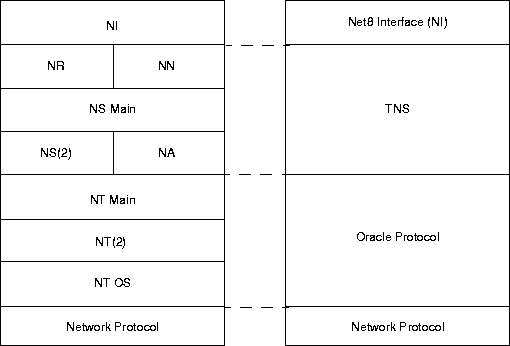
The layers in Figure 11-1 are as follows:
Your network may or may not include all of these components.
As an example, suppose that a user of a client application tries to establish a connection with a database server using Net8 and TCP/IP, and the user enters:
sqlplus scott/tiger@hrserver.com
The SQL*Plus banner is displayed on the screen, and the following error is displayed:
ORA-12203: TNS:Unable to connect to destination
This message indicates that the connection to the server failed because the database could not be contacted. Although the application displays only a one-line error message, an error stack that is much more informative is recorded in the log file by the network layer. On the client-side, a log file called SQLNET.LOG, contains an error stack corresponding to the ORA-12203 error as follows:
***********************************************************
Fatal OSN connect error 12203, connecting to:
 (DESCRIPTION=(CONNECT_DATA=(SID=trace)(CID=(PROGRAM=)
   (HOST=lala)(USER=sviavant)))(ADDRESS_LIST=(ADDRESS=
   (PROTOCOL=ipc)(KEY=trace))(ADDRESS=(PROTOCOL=tcp)
   (HOST=lala)(PORT=1521))))

VERSION INFORMATION:
TNS for SunOS:
Oracle Bequeath NT Protocol Adapter for SunOS:
Unix Domain Socket IPC NT Protocol Adaptor for SunOS:
TCP/IP NT Protocol Adapter for SunOS:
  Tracing to file: /home/sviavant/trace_admin.trc
  Tns error struct:
    nr err code: 12203
    TNS-12203: TNS:unable to connect to destination
    ns main err code: 12541
    TNS-12541: TNS:no listener
    ns secondary err code: 12560
    nt main err code: 511
    TNS-00511: No listener
    nt secondary err code: 61
    nt OS err code: 0
Each Net8 component produces its own log file. The table below provides the default file names and a description of the information they contain:
Parameters that control logging, including the type and amount of information logged, as well as the location where the files are stored, are set in the configuration file of each network component as follows:
This section cover the following topics:
For further information about the parameters described in this section, see Appendix C, "Configuration Parameters".
The following parameters settings can be set in SQLNET.ORA:
The following log parameters can be set in LISTENER.ORA:
The following log parameters can be set in NAMES.ORA:
The following log parameter can be set in CMAN.ORA:
SQLNET.ORA, LISTENER.ORA and NAMES.ORA logging parameters can be set with the Net8 Assistant. CMAN.ORA logging parameter must be set manually in CMAN.ORA, as described in "Oracle Connection Manager Parameters (CMAN.ORA)". To set logging parameters:
| For this log file... | Set logging parameters here... |
|---|---|
|
SQLNET.LOG |
|
|
LISTENER.LOG |
|
|
NAMES.LOG |
The Net8 Assistant application exits.
Logging can be set during a runtime of a control utilities. Note that setting logging with a control utility will not set parameters in the *.ORA files; the setting is only valid for the session of the control utility:
-On UNIX, run netasst at $ORACLE_HOME/bin.
-On Windows NT, choose Start > Programs > Oracle - HOME_NAME > Network Administration > Net8 Assistant.
For Oracle Connection Manager, logging can only be set from the Oracle Connection Manager configuration file, as described in "Oracle Connection Manager Parameters (CMAN.ORA)".
Note::
The Net8 Assistant application exits.
To use a log file to diagnose a network error:
The listener log file contains Audit Trail information that allows you to gather and analyze network usage statistics, as well as information indicating the following:
Note that you cannot turn this feature off.
The Audit Trail formats text into the following fields: Timestamp, Connect Data, Application, [Protocol Info], event, [SID | service], Return Code. Properties of the Audit Trail are as follows:
Typical output to the log file upon a reload request is as follows:
28-dec-98 14:12:18 * (connect_data=(service=sales.com)(cid=
(program=)(host=sales=pc)(user=system)) (command=reload) (arguments=64)
(service=listener) (version=(version=135282688))* reload * 0
Typical output to the log file upon a connection request is as follows:
28-dec-98 14:16:21 * (connect_data=(service=sales.com)(cid=
(program=c:\ora81\bin\sqlplus.exe)
(host=windowspc)(user=dsteiner))) * (address=(protocol=tcp)
(host=144.25.23.246)(port=3366))
* establish * sales.com * 0
Notice that the user ID is recorded as well as the platform, protocol, and software used to make the connection.
You can use Audit Trail information to view trends and user activity by first storing it in a table and then collating it into a report format. To import the data into a table, use an import utility such as SQL*Loader.
The Oracle Connection Manager CMGW gateway process creates a log file called CMAN_PID.LOG, and the CMADMIN administrative process creates a log file called CMADM_PID.LOG. The log files are located in $ORACLE_HOME/network/log on UNIX and ORACLE_HOME\network\log on Windows NT.
(TIMESTAMP=30-DEC-98 18:03:10)(EVENT=10)(VERSION=8.1.4.0.0)
(TIMESTAMP=30-DEC-98 18:03:10)(EVENT=36)(rule_list=
(rule=(src=spcstn)(dst=x)(srv=x)(act=accept)))
(TIMESTAMP=30-DEC-98 18:03:10)(EVENT=32)(PARAMETER_LIST=(MAXIMUM_
RELAYS=1024)(RELAY_STATISTICS=no)(AUTHENTICATION_LEVEL=0)(LOG_LEVEL=1)(SHOW_TNS_
INFO=no)(ANSWER_TIMEOUT=0)(MAXIMUM_CONNECT_DATA=1024)(USE_ASYNC_
CALL=yes)(TRACING=no)(TRACE_DIRECTORY=default)(MAX_FREELIST_BUFFERS=0))
(TIMESTAMP=30-DEC-98 18:03:10)(EVENT=34)(ADDRESS_LIST=
(ADDRESS=(PROTOCOL=tcp)(HOST=)(PORT=1610)(QUEUESIZE=32)))
(TIMESTAMP=30-DEC-98 18:03:12)(EVENT=38)(COMMAND=2)
(TIMESTAMP=30-DEC-98
18:03:27)(EVENT=26)(RLYNO=0)(SRC=(ADDRESS=(PROTOCOL=tcp)(HOST=spcstn.us.oracle.c
om)(PORT=34758)))(DST=(ADDRESS=(PROTOCOL=tcp)(HOST=144.25.187.89)(PORT=1581)))
(TIMESTAMP=30-DEC-98 18:03:43)(EVENT=28)(RLYNO=0)(SINCE=30-DEC-98
18:03:27)(STATISTICS=(IN=(BYTES=0)(PACKETS=0)(DCDS=0)(OUT=(BYTES=0)(PACKETS=0)(D
CDS=0)))
(TIMESTAMP=30-DEC-98 18:03:09)(EVENT=Sent Admin Status to UI)
(TIMESTAMP=30-DEC-98 18:03:10)(EVENT=CMan Registration)
The CMAN_PID.LOG reports events using event codes numbers. This section explains what each of these event codes represents dependent on the log level that was The event code reported is dependent upon the log level set with the LOG_LEVEL parameter in CMAN.ORA:
Log Level 1 Events
| Code | Description |
|---|---|
|
10 |
Gateway is starting up |
|
12 |
Gateway is shutting down |
|
14 |
Listening on TNS address(es) |
|
18 |
Additional Information: See "Reasons for Event Code 18". |
|
20 |
Additional Information: See "Reasons for Event Code 20". |
|
26 |
Relay is now open |
|
28 |
Relay is now closed |
|
30 |
Statistics report |
|
32 |
<parameter_list> |
|
34 |
<address_list> |
|
36 |
<parameter_list> |
|
38 |
CMCTL command |
|
40 |
CMCTL command refused because the gateway is busy |
|
42 |
Dead connection detected |
|
44 |
Relay has timed out |
|
11 |
Bad <address_list> argument |
|
13 |
Bad <parameter_list> argument |
|
15 |
Bad <rule_list> argument |
|
23 |
Bad CMCTL record |
|
25 |
Command line argument is too long |
|
27 |
Memory allocation failure |
|
29 |
TNS error |
|
31 |
TNS error doing CMCTL |
The answer can fail due to the following:
| Code | Description |
|---|---|
|
1 |
Timed out |
|
2 |
Connect data buffer is too small |
|
3 |
Refused by TNS |
|
4 |
TNS packet checksum error |
The incoming call can be refused if:
Log Level 2 Events
| Code | Description |
|---|---|
|
102 |
Answering in-coming call |
|
104 |
Making out-going call |
|
105 |
Accepting in-coming call |
|
106 |
Rule match report |
Log Level 3 Events
| Code | Description |
|---|---|
|
202 |
Call will block (no asynchronous TNS support) |
|
204 |
Additional Information: See "Reasons for Event Code 204". |
|
206 |
Buffer contains leftover data |
| Code | Description |
|---|---|
|
1 |
Waiting for writer to be ready |
|
2 |
Waiting for writer to clear backlog |
|
3 |
EWOULDBLOCK error on recovery |
|
4 |
TNS packet checksum error |
|
5 |
EWOULDBLOCK or EPARTIAL on send |
Log Level 4 Events
| Code | Description |
|---|---|
|
302 |
Read this many bytes |
|
304 |
Wrote this many bytes |
|
306 |
Wrote this many bytes on retry |
Tracing produces a detailed sequence of statements that describe network events as they are executed. Tracing an operation allows you to obtain more information on the internal operations of the components of Net8 than is provided in a log file. This information is output to files that can be evaluated to identify the events that led to an error.
This section covers the following topics:
Each Net8 component produces its own trace file. The table below provides the default file names and a description of the information they contain:
Parameters that control tracing, including the type and amount of information logged, as well as the location where the files are stored, are set in the configuration file of each network component as follows:
This sections cover the following topics:
For further information about the parameters described in this section, see Appendix C, "Configuration Parameters".
The following parameters settings can be set in SQLNET.ORA:
You can also manually add the following optional tracing parameters for the TNSPING utility to SQLNET.ORA. TNSPING determines whether or not a service (such as a database, an Oracle Names Server, or other TNS services) on a Net8 network can be successfully reached.
The following trace parameters can be set in LISTENER.ORA:
The following trace parameters can be set in NAMES.ORA:
The following trace parameters can be set in CMAN.ORA:
SQLNET.ORA, LISTENER.ORA and NAMES.ORA logging parameters can be set with the Net8 Assistant. CMAN.ORA logging parameter must be set manually, as described in "Oracle Connection Manager Parameters (CMAN.ORA)". To set logging parameters:
| For this trace file... | Set tracing parameters here... |
|---|---|
|
SVR_PID.TRC (for the server) |
|
|
LISTENER.TRC |
|
|
NAMES.TRC |
The Net8 Assistant application exits.
Tracing can be set during a runtime of a control utilities. Note that setting tracing with a control utility will not set parameters in the *.ORA files; the setting is only valid for the session of the control utility:
-On UNIX, run netasst at $ORACLE_HOME/bin.
-On Windows NT, choose Start > Programs > Oracle - HOME_NAME > Network Administration > Net8 Assistant.
For Oracle Connection Manager, tracing can only be set from the Connection Manager configuration file, as described in "Oracle Connection Manager Parameters (CMAN.ORA)".
Note::
The Net8 Assistant application exits.
Evaluating trace files either manually, or by using the Trace Assistant tool will help you to diagnose and troubleshoot network problems by giving you a better understanding of the following:
Net8 performs its functions by sending and receiving data packets.By specifying a trace level of SUPPORT, you can view the actual contents of the Net8 packet in your trace file. The order of the packet types sent and received will help you to determine how your connection was established.
Each line in the trace file begins with a procedure followed by a message. Following each procedure is a line of hexadecimal data representing actual data. The actual data that flows inside the packet is sometimes viewable to the right of the hexadecimal data.
Below is a list of the Net8 packet keywords and describes the types of packets they represent:
| Keyword | Packet Type |
|---|---|
|
NSPTCN |
Connect |
|
NSPTAC |
Accept |
|
NSPTRF |
Refuse |
|
NSPTRS |
Resend |
|
NSPDA |
Data |
|
NSPCNL |
Control |
|
NSPTMK |
Marker |
|
Note:: This data is not viewable if you are using encryption through an Oracle network product or through EBCDIC data. |
For example, the following line describes a procedure called "nscon" sending a NSPTCN packet over the network:
nscon: sending NSPTCN packet
Each packet has a keyword that denotes the packet type. All packet types begin with the prefix "NSP". It is helpful to remember this when reviewing trace files for specific packet information
Figure 11-7 provides typical packet information:
nscon: entry
nscon: doing connect handshake...
nscon: sending NSPTCN packet
nspsend: entry
nspsend: plen=187, type=1
nspsend: 187 bytes to transport
nspsend:packet dump
nspsend:00 BB 00 00 01 00 00 00  |........|
nspsend:01 33 01 2C 0C 01 08 00  |.3.,....|
nspsend:7F FF 7F 08 00 00 00 01  |........|
nspsend:00 99 00 22 00 00 08 00  |..."....|
nspsend:01 01 28 44 45 53 43 52  |..(DESCR|
nspsend:49 50 54 49 4F 4E 3D 28  |IPTION=(|
nspsend:43 4F 4E 4E 45 43 54 5F  |CONNECT_|
nspsend:44 41 54 41 3D 28 53 49  |DATA=(SI|
nspsend:44 3D 61 70 33 34 37 64  |D=ap347d|
nspsend:62 31 29 28 43 49 44 3D  |b1)(CID=|
nspsend:28 50 52 4F 47 52 41 4D  |(PROGRAM|
nspsend:3D 29 28 48 4F 53 54 3D  |=)(HOST=|
nspsend:61 70 32 30 37 73 75 6E  |ap207sun|
nspsend:29 28 55 53 45 52 3D 6D  |)(USER=m|
nspsend:77 61 72 72 65 6E 29 29  |warren))|
nspsend:29 28 41 44 44 52 45 53  |)(ADDRES|
nspsend:53 5F 4C 49 53 54 3D 28  |S_LIST=(|
nspsend:41 44 44 52 45 53 53 3D  |ADDRESS=|
nspsend:28 50 52 4F 54 4F 43 4F  |(PROTOCO|
nspsend:4C 3D 74 63 70 29 28 48  |L=tcp)(H|
nspsend:4F 53 54 3D 61 70 33 34  |OST=ap34|
nspsend:37 73 75 6E 29 28 50 4F  |7sun)(PO|
nspsend:52 54 3D 31 35 32 31 29  |RT=1521)|
nspsend:29 29 29 00 00 00 00 00  |))).....|
nspsend: normal exit
nscon: exit (0)
Every time a problem occurs with the connection in Net8, the error code is logged in the trace file with the prefix of <ERROR> or <FATAL>. Figure 11-8 depicts typical trace file error output.
nspsend: entry
nspsend: plen=244, type=6
ntpwr: entry
ntpwr: exit
-<ERROR>- nspsend: transport write error
nspsend: error exit
nserror: entry
-<ERROR>- nserror: nsres: id=0, op=65, ns=12541, ns2=12560; nt[0]=511,
nt[1]=61,nt[2]=0
-<ERROR>- nsopen: unable to open transport
nricdt: Call failed...
nricdt: exit
-<ERROR>- osnqper:  error from nricall
-<ERROR>- osnqper:  nr err code: 12203
-<ERROR>- osnqper:  ns main err code: 12541
-<ERROR>- osnqper:  ns (2)  err code: 12560
-<ERROR>- osnqper:  nt main err code: 511
-<ERROR>- osnqper:  nt (2)  err code: 61
-<ERROR>- osnqper:  nt OS   err code: 0
osnqme: entry
osnqme:  reporting nr (1) error: (12203) as rdbms err (12203)
osnqme: exit
-<ERROR>- onstns: Couldn't connect, returning 12203
nricall: Exiting NRICALL with following termination result -1
nricall: exit
osnqme: entry
osnqme:  reporting nr (1) error: (12203) as rdbms err (12203)
osnqme: exit
-<ERROR>- onstns: Couldn't connect, returning 12203
-<ERROR>- osnqper:  error from nricall
The most efficient way to evaluate error codes is to find the most recent NS error code logged. This is because the session layer controls the connection. The most important error messages are the ones at the bottom of the file. They are the most recent errors and the source of the problem with your connection.
For information about the specific return codes, use the Oracle UNIX error tool oerr. Use the oerr tool to discover more information about Net8 return codes, by entering the following at any command line prompt:
oerr tns error_number
Net8 provides a tool called the Trace Assistant to help you understand the information provided in your trace files by converting existing lines of trace file text into a more readable paragraph. Note that the Trace Assistant runs against only a level 16 (SUPPORT) SQL*Net or Net8 trace file.
To run the Trace Assistant, enter the following at any command line prompt:
trcasst [options] filename
The options are described below.
Figure 11-9 depicts how Trace Assistant converts trace file information into a more readable format.
However, other errors may also exist within the trace file that were not logged from the nserror function.
Trace Assistant also allows you to view data packets from both the Net8 and Two Task Common communication layers. Trace Assistant offers you two options to view these packets:
The following examples depict how Trace Assistant presents various packets as they are sent to and from the Net8 layer in a variety of transactions:
Note that the packets being sent or received have a prefix of "---> Send nnn bytes" or "<--- Received nnn bytes" showing that this node is sending or receiving a packet of a certain type and with nnn number of bytes. This prefix enables you to determine if the node is the client or the server. The connection request is always sent by the client, but received by the server (or listener).
Two-Task Common handles requests such as open cursor, select rows, and update rows that are directed to the database. All requests are answered by the server. If you request to logon, a response is returned from the database that the request was completed. Figure 11-14 through Figure 11-16 show the type of information you can expect.
Summary information for Two-Task Common is different from other displays in that it shows two packets on each line, rather than one. This is done to mirror the request/response pairings process by which Two-Task Common operates.
The type of statistics gathered is on the order of how many calls (TTC), packets and bytes were sent and received between the network partners. The following example depicts typical trace file statistics:
The following example shows a full trace file decoded. This example was created using the Oracle client tool SVRMGRL with the request:
connect scott/tiger@june
The message ORA-12154: TNS:could not resolve service name was displayed on the screen.
This trace file provides a summary of what occurs with Net8 when you encounter the error ORA-12154: Could not resolve service name. In this example, a client is unsuccessful in making a connection to net service name JUNE. This is because a NAMES.DEFAULT_DOMAIN = COM parameter exists in the SQLNET.ORA file. This parameter adds the ".COM" extension to all net service names requested, including the net service name JUNE. Unfortunately, this net service name is defined in neither the client's TNSNAMES.ORA file, nor an Oracle Names Server. To troubleshoot this problem, the user should:
If you are still unable to resolve your problems or if you are requested to contact Oracle Customer Support to report the error, please have the following information at hand:
